Certificate register
The list of every welding certificate your center has issued, with validity summary cards, filters, bulk reminders, and quick file uploads.
When to use
To find an issued certificate, see how many are valid/expiring/expired at a glance, send renewal reminders, or attach a missing certificate file.
Where
- Sidebar: Courses & Certificates → Certificates
- URL:
/partner/certificates - Roles: Owner / Admin / Manager.
Step-by-step
- Open Certificates. The top shows summary cards: Total Certificates, Valid, Expiring Soon,
Expired.
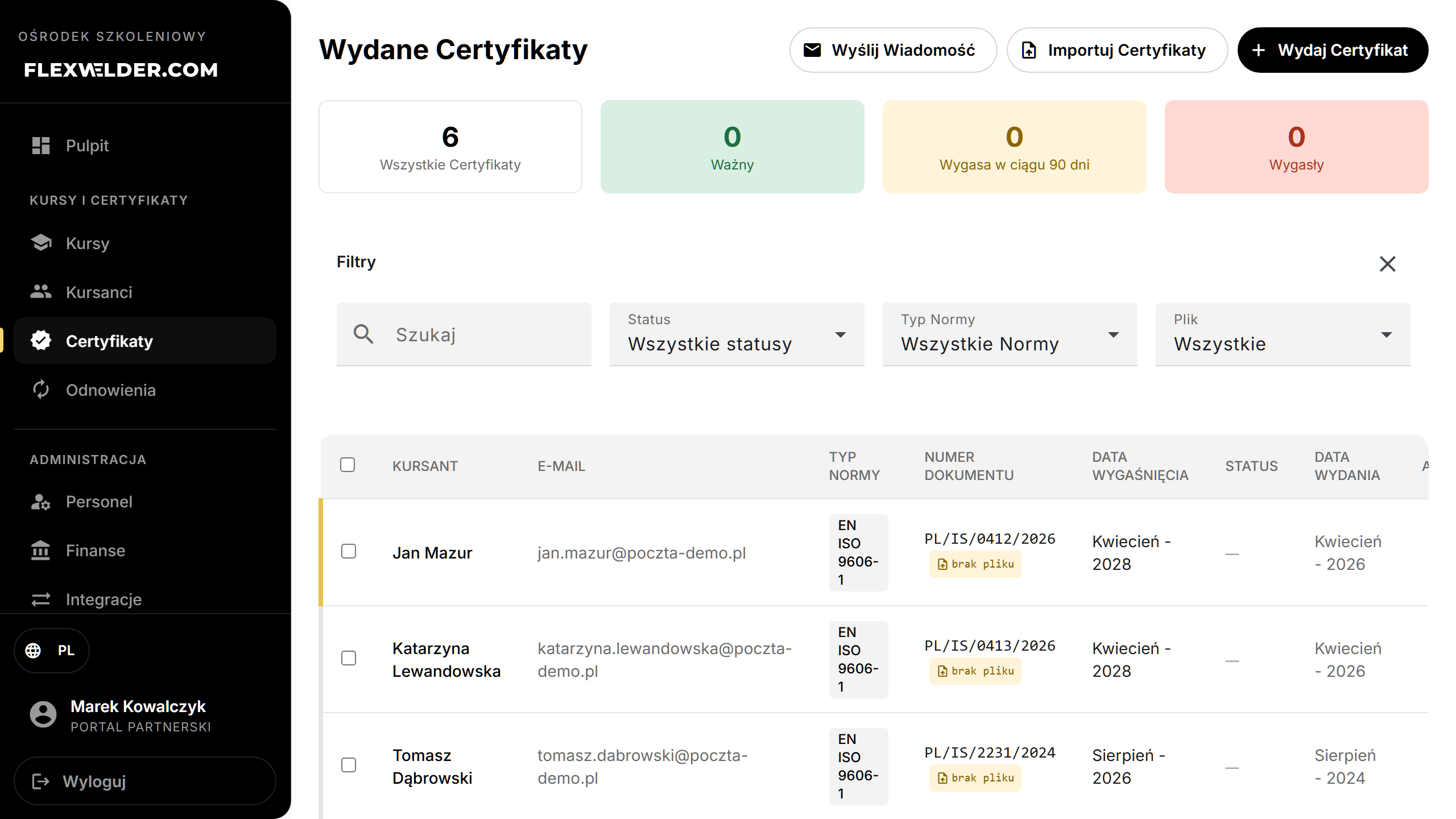
- Filter by status, Standard Type, Welding Method, expiration date range, File (with/without), or search by name, email or document number.
- Read the table; each row shows the holder, document number, standard, expiry and a status chip (Valid / Expiring Soon / Expired). Rows missing a file show "no file" with an upload action.
- Open a certificate to view or edit it (detail).
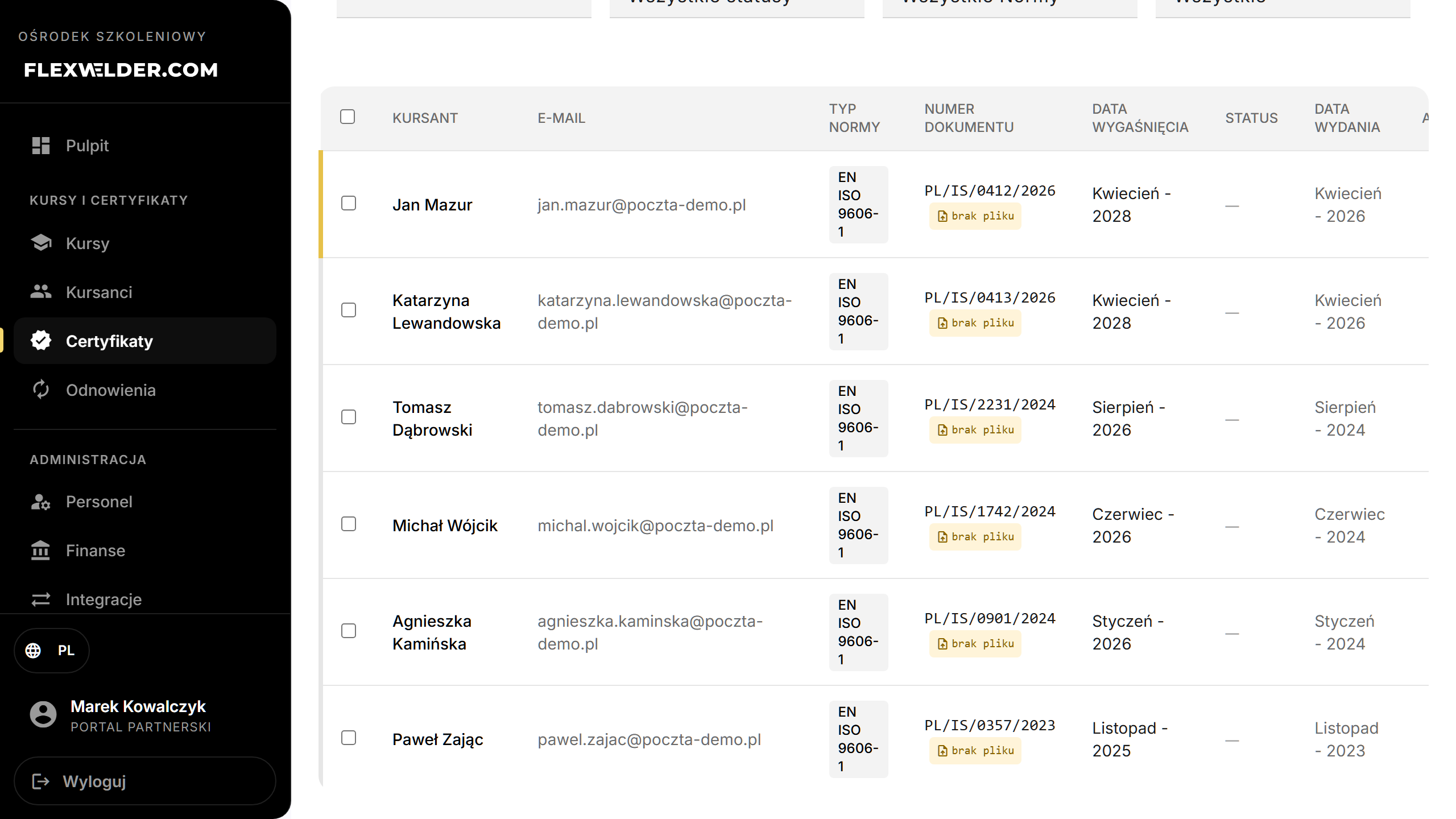
- Bulk reminders: select certificates, then send reminder emails to those holders.
- New certificates come from "Issue Certificate" or "Import Certificates" (top of the page).
Fields & validation
Filters only. Validity status is derived from the expiration date (Expiring Soon = within 90 days).
What happens / outcome
- Issue Certificate → the issue flow. Import Certificates → the import flow.
- Send reminders queues emails — "Reminder emails queued for N certificate holder(s)".
- Upload missing file attaches a PDF to that certificate ("File attached successfully").
Edge cases & errors
- No certificates: empty state prompting you to issue your first.
- None selected when sending reminders: "No certificates selected".
- Load/upload failures show a toast and can be retried.
Related flows
- Issue a certificate · Import certificates · Certificate detail · Message holders · Certificate renewal
FAQ
- What counts as "Expiring Soon"? A certificate expiring within 90 days.
- How do I fix a certificate with no file? Use the per-row upload, or open its detail and attach the file there.