Student profile
One person's record across all your courses: personal data, enrollments, certificates and attendance — and the place to keep their data complete for certificates.
When to use
To review or edit a student's personal details (the data printed on certificates), see every course they're in, and check their certificates.
Where
- Sidebar: Students → click a student
- URL:
/partner/students/:userId - Roles: Owner / Admin / Manager / Employee.
Step-by-step
- Open a student from the list. The header shows name, email, phone and an account status
chip — Active (account activated) or Pending activation (hasn't set a password yet).
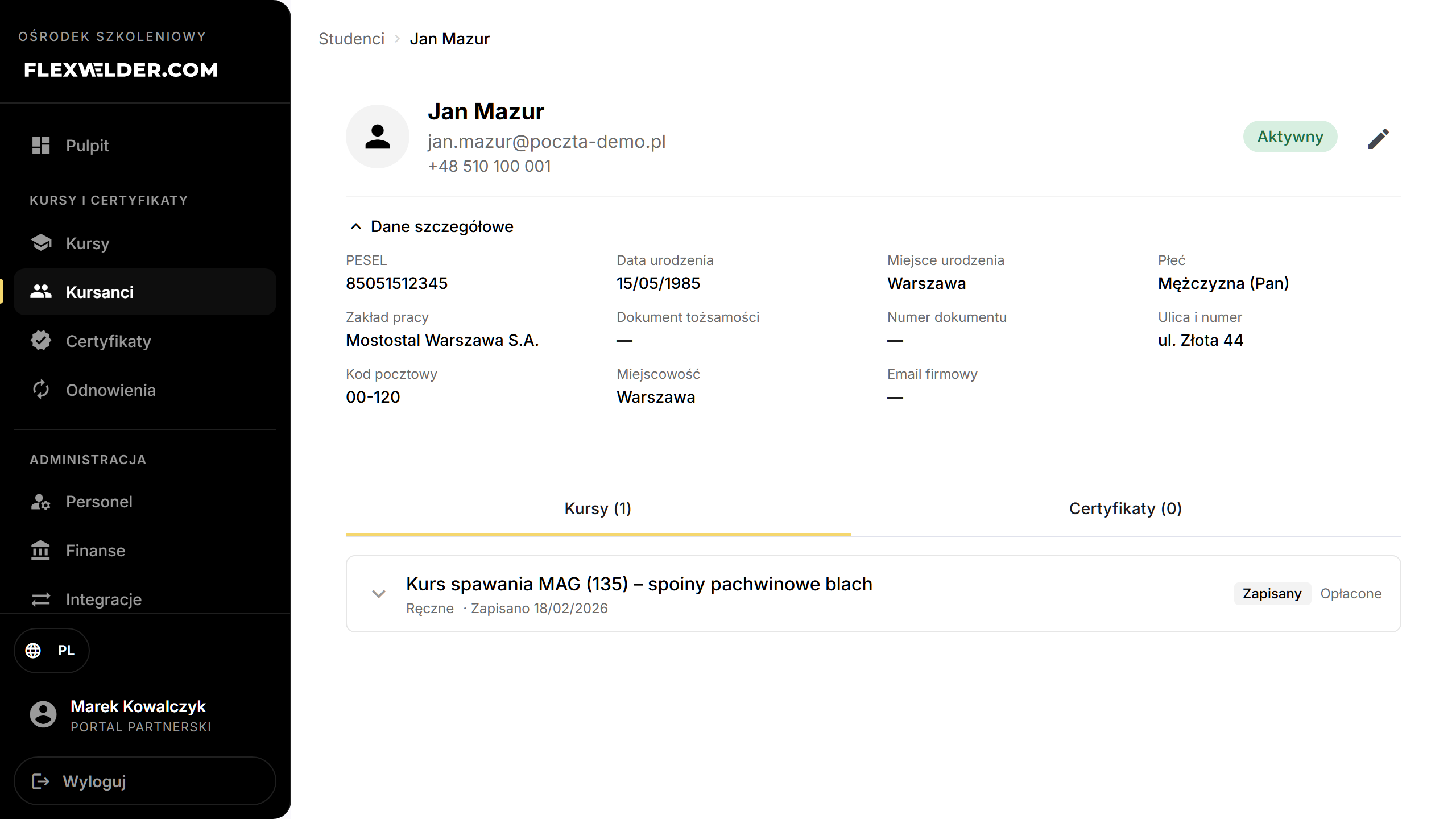
- Click "Detailed data" to expand the full personal record (used on certificates).
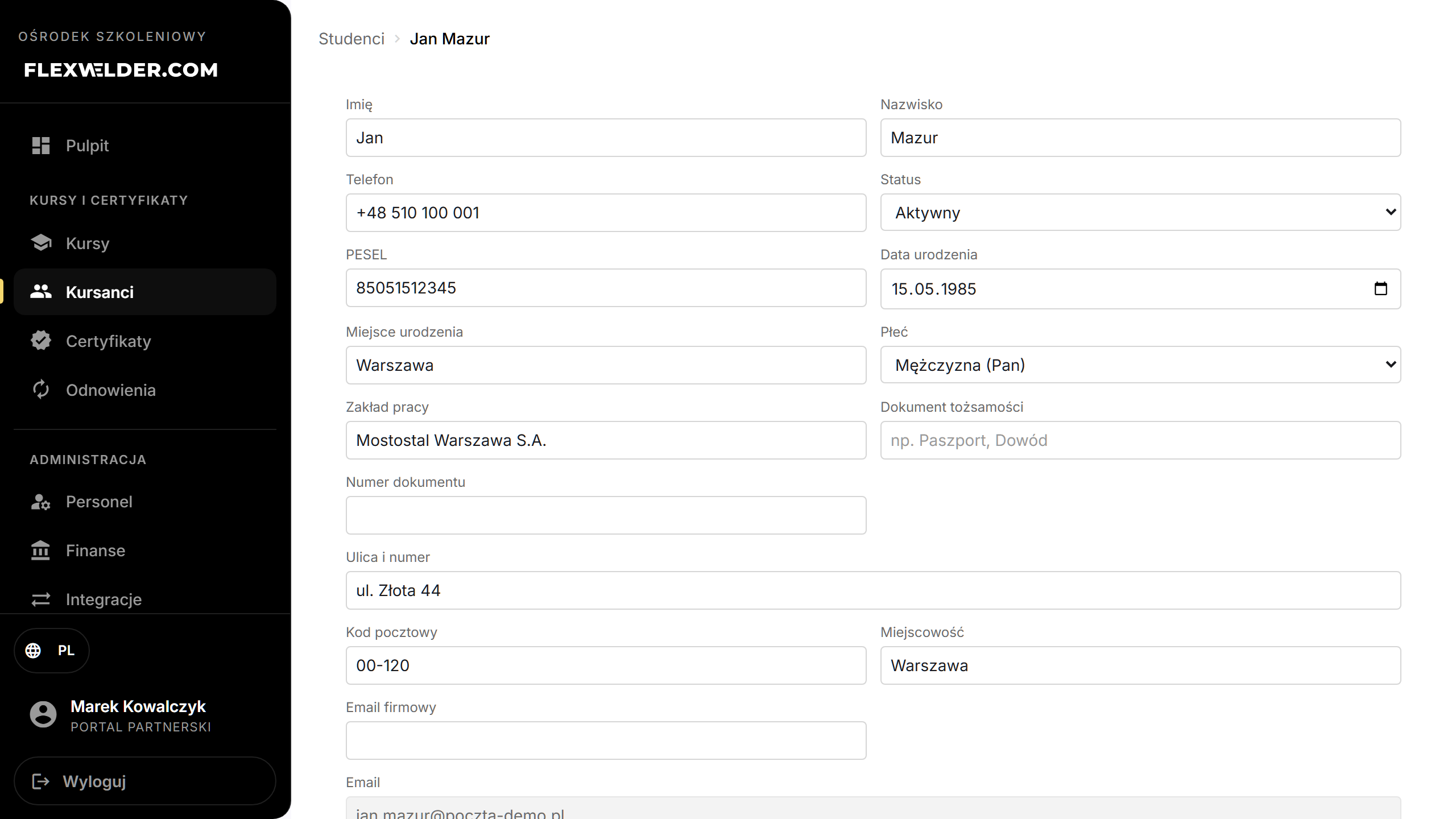
- Click the edit (pencil) — "Edit student data" — to update the fields, then save.
- Review the student's enrollments, certificates, and attendance in the sections below.
The student's account (login, password, SMS)
Above the tabs sits a "Student account" card: the login (email), phone number and account status — "Not activated" / "Active", possibly "Awaiting password change" (the student will sign in with a temporary password and must set their own). Actions:
- "Send activation link" (account not activated) or "Send password-change link" (account active) — with a channel choice: Email / SMS / Email + SMS. The SMS options are disabled without a phone number.
- "Temporary password" — for a student without access to their inbox. After confirming ("The student's current password will stop working.") the system shows the login and the generated password once, with a copy button — hand them to the student. On their first sign-in the Welder's Passport forces them to set their own password (min. 12 characters); until then the profile shows "Awaiting password change".
- "Send SMS" — any message to the student (see SMS notifications).
Certificates on the profile
The Certificates tab shows the welder account's complete set of certificates — including ones your center did not issue: certificates from an exam center (synced to the Passport automatically) and ones the welder uploaded themselves. Entries from outside your center show the issuer's name (or "Uploaded by the welder") under the standard, plus an "External" label — the file and data are managed by the issuer, so the number is not clickable. Your center's own certificates keep the full set of actions (file preview, attaching a file, opening the detail view). The certificate register remains a list of only the certificates issued by your center.
Fields & validation
Personal data (all optional unless your certificates need them): PESEL, Date of birth, Place of birth, Province of birth, Gender, Workplace, Identity document + Document number, address (Street and number, Postal code, City), Work email. The Email (login) cannot be changed from this view.
What happens / outcome
- Saving updates the student's profile ("Student data updated") — these values flow onto issued certificates.
- The profile aggregates the person across courses, so edits here apply everywhere they're enrolled.
Edge cases & errors
- Missing email: a banner warns that an email is required to issue certificates and send messages — add it here.
- Account status reflects whether the student activated their Passport login, independent of enrollment status.
- For in-course actions (payment, attendance, grade) for one specific course, use the student card.
Related flows
FAQ
- Why edit personal data here? Fields like PESEL and address are printed on completion certificates — keep them accurate before issuing.
- Profile vs card? The profile is cross-course (the person); the card is one course enrollment.