Getting started
What the Training Center portal is, how to sign in, and how to find your way around the menu.
When to use
Read this first if you are new to the portal. It explains the roles, the sidebar, and how access works before you dive into a specific flow.
What the Training Center portal is
The Training Center portal is the /partner/* area of the FlexWelder admin dashboard. It lets a welding training
center manage courses, editions, students, attendance, agenda, instructors, certificates, staff, finances and
integrations in one place.
The Training Center menu appears only for companies whose type is "Training Center" (companyType =
TRAINING_CENTER). If your company is set to another type, the training menu is hidden — change the company type
under Account settings (Company tab) or contact FlexWelder.
Signing in
- Open the admin dashboard (e.g.
https://admin.flexwelder.com). - Enter your "Email address" and "Password" and click "Sign in".
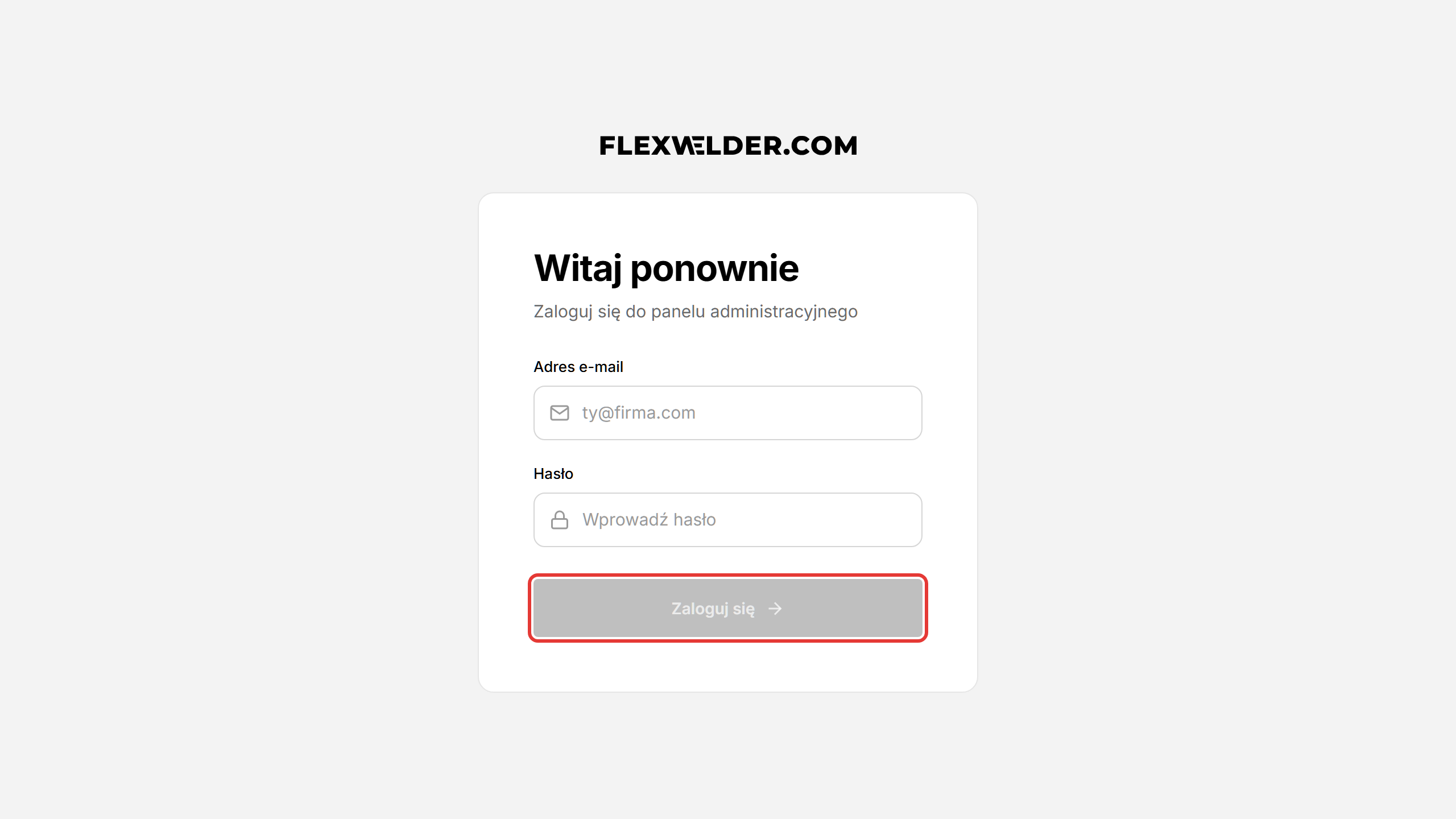
- You land on the Dashboard. The left sidebar shows the "Training Center" section.
Invited staff (activation): if an admin invited you, you receive an activation email. Open the link, set a password under "Set Your Password", and click "Activate Account". Then sign in normally. (See Staff.)
The sidebar
The menu is grouped into sections (labels as they appear in the app):
- Dashboard
- Courses & Certificates — Courses, Students, Certificates, Renewal
- Sales — Offers, Clients, Price list (the offers module; see Price lists & offers)
- Administration — Staff, Financials, Integrations, Student Portal
- Settings
What you see depends on your role (see Roles & access): - Owner / Admin / Manager see the full menu. - Employees (office support) see the Dashboard (the center's course list), Courses, Students (the registry) and Settings (profile). Certificates, Renewal and the Sales and Administration sections are hidden for them. - Trainers (in the interface: "Instructor") see a reduced menu — Dashboard, Courses (their assigned courses), and Settings. The Sales and Administration sections and the center-wide Students/Certificates/Renewal items are hidden for them.
Some screens exist but are hidden from the menu by configuration: Calendar, Bulk Operations, and Audit Logs. They are still reachable by URL and documented under Other. The Student Portal item is currently shown as disabled ("To be implemented") in the menu.
How access works (in one line)
Most management screens require an admin-level role (Owner/Admin/Manager). An Employee runs the student registry, attendance, completion certificates and SMS — without the administration side. Trainers can open the courses they are assigned to — including the edition's Students and Attendance tabs and a student's card (the Agenda and Instructors tabs are reserved for admin staff) — but cannot create/edit courses or reach center-wide Students, Certificates, Staff, Financials, Integrations, or Renewal. Full detail: Roles & access.
Related flows
FAQ
- I don't see the Training Center menu. Your company type isn't "Training Center", or your account isn't a partner account. Check the Company tab in Account settings.
- I'm a trainer and can't open Students or Certificates. Those are admin-only. You manage students from inside your own course's edition instead.