Students list
Every unique student across all your courses, aggregated into one row per person, with a "needs attention" flag.
When to use
To find a student, see how many courses they're in and their latest status/payment, or jump to enrolling someone new.
Where
- Sidebar: Courses & Certificates → Students
- URL:
/partner/students - Roles: Owner / Admin / Manager / Employee. (Trainers manage students inside their own courses instead.)
Step-by-step
- Open Students. Header reads "Students" / "All Students", with "New Student" top-right.
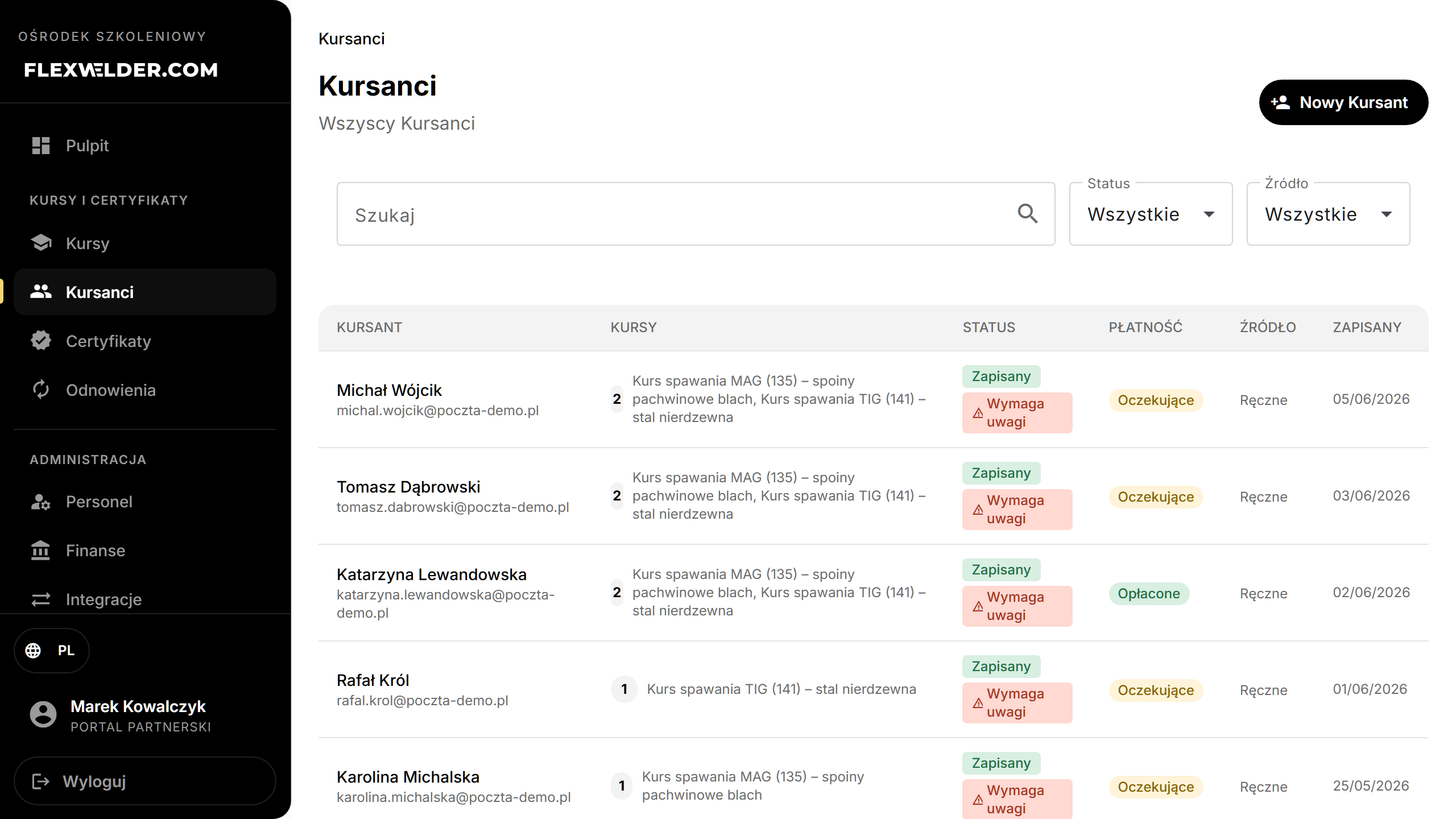
- Filter: "Search" (name or email), "Status" (All / Enrolled / Completed / Pending / Cancelled), "Source" (All / Manual / E-commerce).
- Read the table: Student (name + email), Courses (count + names), Status (latest, with a red "Needs attention" badge where applicable), Payment (latest), Source, Enrolled (latest date). People added to the registry without a course carry an amber "No course" badge and a grey "In registry" status.
- Click a row to open the student profile.
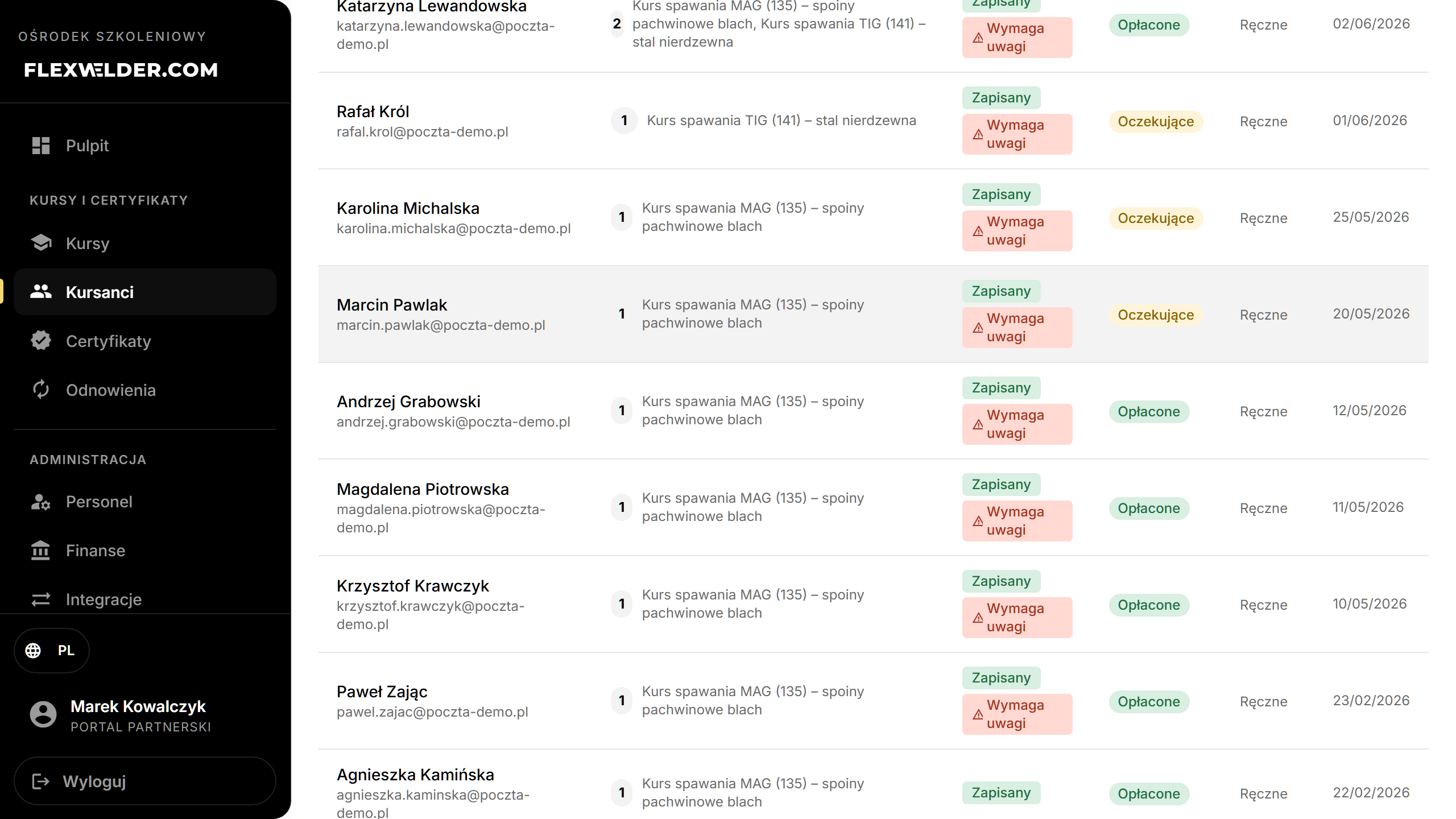
Fields & validation
Filters only. Search is debounced (~0.4 s); the list is paginated (20 per page).
What happens / outcome
- New Student → the enroll form.
- Each row aggregates all of that person's enrollments; "Courses" shows how many and which.
Edge cases & errors
- "Needs attention" marks students in active enrollments missing a milestone — the tooltip lists reasons: lecture not attended, practice not attended, sample not passed, exam not passed, or payment overdue.
- Dashboard alerts can deep-link here pre-filtered to needs-attention; an amber banner shows, with "Clear filter".
- No results: "No students found" + "Try adjusting your filters."
Related flows
FAQ
- One row but several courses? Yes — the list is per person; open the profile to see each enrollment.
- What makes a student "need attention"? An active enrollment missing lecture/practice/sample/exam, or an overdue payment.
- What does "In registry" mean? The person is in the center's database but has no course enrollment yet — the status and payment filters don't cover them.