Price list & categories
A single catalog of the center's price list items (services, courses, exams) with VAT rates, plus a two-level category dictionary that groups items on the offer PDF.
When to use
Fill the price list once and update it when prices change. While building an offer you add items from this catalog with one click (price still overridable), instead of retyping them every time.
Where
- Sidebar: Sales → Price list
- URL:
/partner/price-list - Roles: Owner / Admin / Manager. Trainers don't see the Sales section.
Prerequisites
None. It helps to create categories first (the "Categories" button) so items can be assigned right away.
Step-by-step
Categories & subcategories
- Click "Categories". In the dialog type a Category name, in Parent category keep
"None (top-level category)" or pick a parent (creating a subcategory), then click "Add".
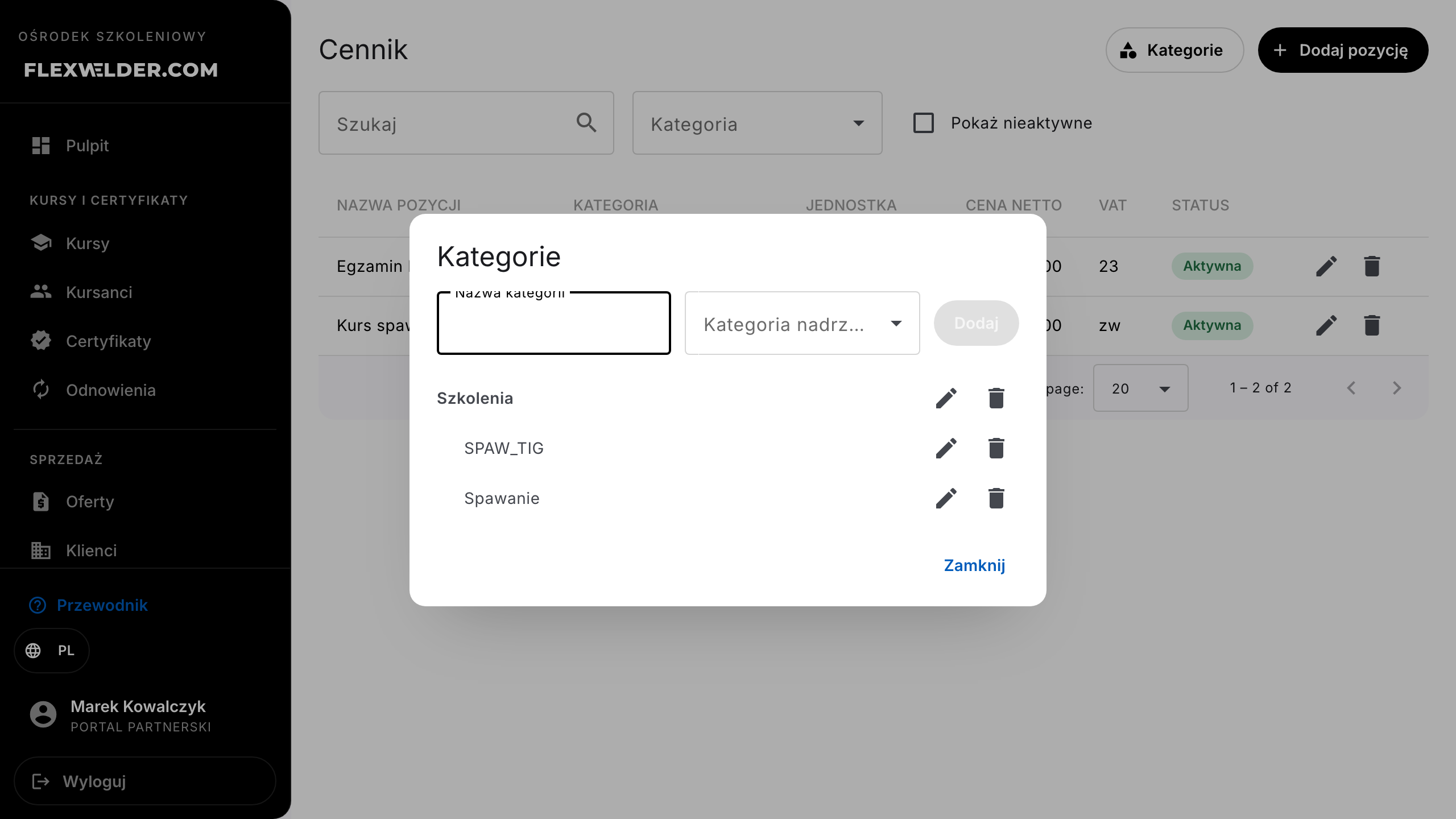
- Rename with the pencil icon, delete with the trash icon. The dictionary has two levels: category → subcategory.
- The category order defines the order of sections in the items table on the offer PDF.
Price list items
- Click "Add item".
- Enter the Item name, pick a Category (subcategories are indented; "No category" is also fine), a Unit (szt., os., godz., dzień, kurs), the Net price and VAT (23 / 8 / 5 / 0 / zw / np).
- Optionally pick a Linked course (informational link to the course catalog) and add a Description — it shows under the item name on the offer and the acceptance page.
- Click "Save" (toast "Item saved").
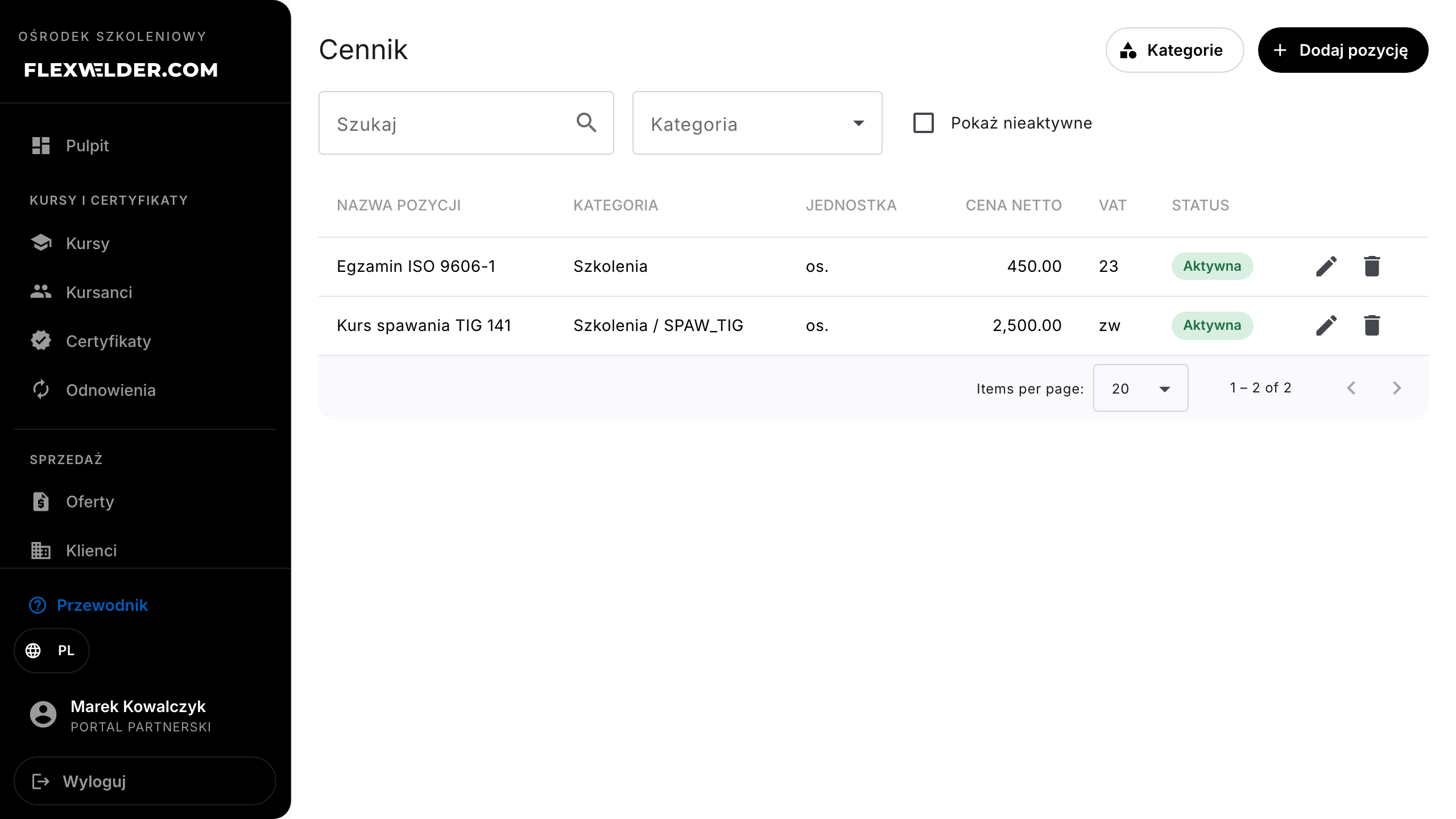
- Narrow the list with the search box and the Category filter; retire items by unchecking Active in the dialog and review them later via "Show inactive".
Fields & validation
| Field (label) | Required | Notes / validation |
|---|---|---|
| Item name | yes | — |
| Category | no | One dictionary node: a category or a subcategory. |
| Unit | no | Suggested: szt., os., godz., dzień, kurs (defaults to szt.). |
| Net price | yes | In PLN, minimum 0; can be overridden per offer. |
| VAT | no | Closed set: 23, 8, 5, 0, zw, np (defaults to 23). zw and np compute like 0% but remain separate summary rows on the offer. |
| Linked course | no | Pick from the center's courses or "No link". |
| Description | no | Shown on the offer PDF under the item name. |
| Active | — | Inactive items are not suggested while building an offer. |
What happens / outcome
- The item becomes available in the offer editor's "Add from price list" field (search by name).
- Offer items carry copied data (name, description, category names, unit, VAT rate) — changing or deleting a price list item never changes existing offers.
Edge cases & errors
- Deleting an item is permanent — the confirmation reads: "Item «name» will be removed from the price list. Items on existing offers stay unchanged."
- Deleting a category in use is blocked: "Cannot delete: the category is used by price list items or has subcategories." Reassign items / remove subcategories first.
- Empty state: "No price list items yet. Add the first item to build offers."
Related flows
- Create / edit an offer — where items land on an offer · Courses list — source of the "Linked course" field.
FAQ
- Can I have several price lists (e.g. per client)? No — there is one catalog per center. Client-specific pricing is done with discounts or price overrides on the offer itself.
- What does a category do? Grouping: on the offer PDF, items form sections with "Category / Subcategory" headers in dictionary order.