Bulk operations
Two batch tools: enrol many students from a CSV, and update progress for many students at once. (The menu item is hidden by default; the page is reachable at its URL.)
When to use
To onboard a whole class from a spreadsheet, or to mark a progress milestone (e.g. lecture attended) for many students in one go.
Where
- URL:
/partner/bulk-operations(hidden from the sidebar by configuration) - Roles: Owner / Admin / Manager.
Step-by-step — CSV enrollment
- Open "Bulk Operations" → "CSV Enrollment".
- Select Course, then Upload CSV File — format: email, firstName, lastName (one student per row).
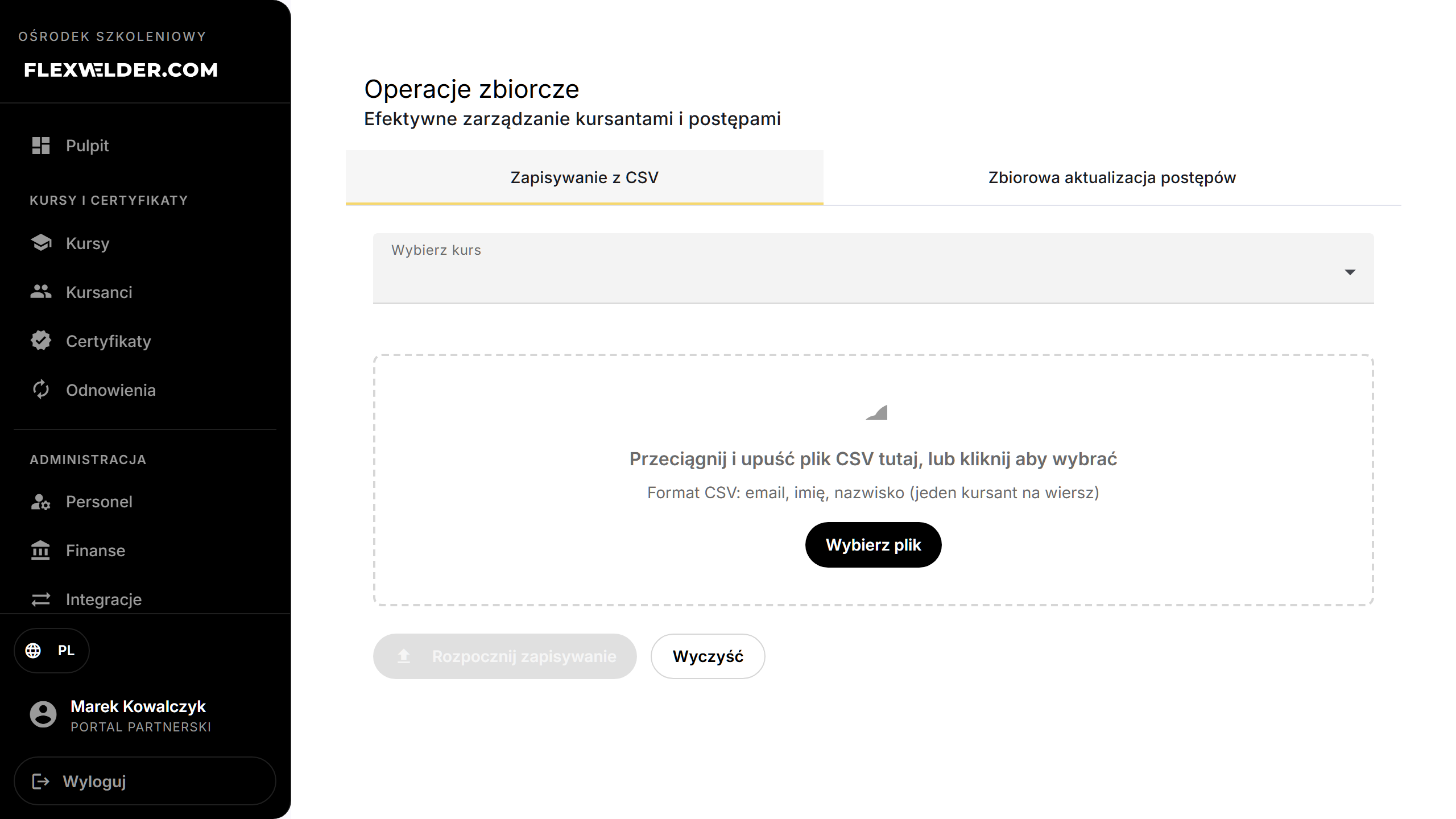
- Review the Preview (Valid Rows / Invalid Rows), then click "Start Enrollment".
- See the result: Successful, Failed, Total.
Step-by-step — batch progress update
- Switch to "Batch Progress Update", Select Course, then "Load Students".
- Select students, choose the Progress Field, and click "Apply Update".
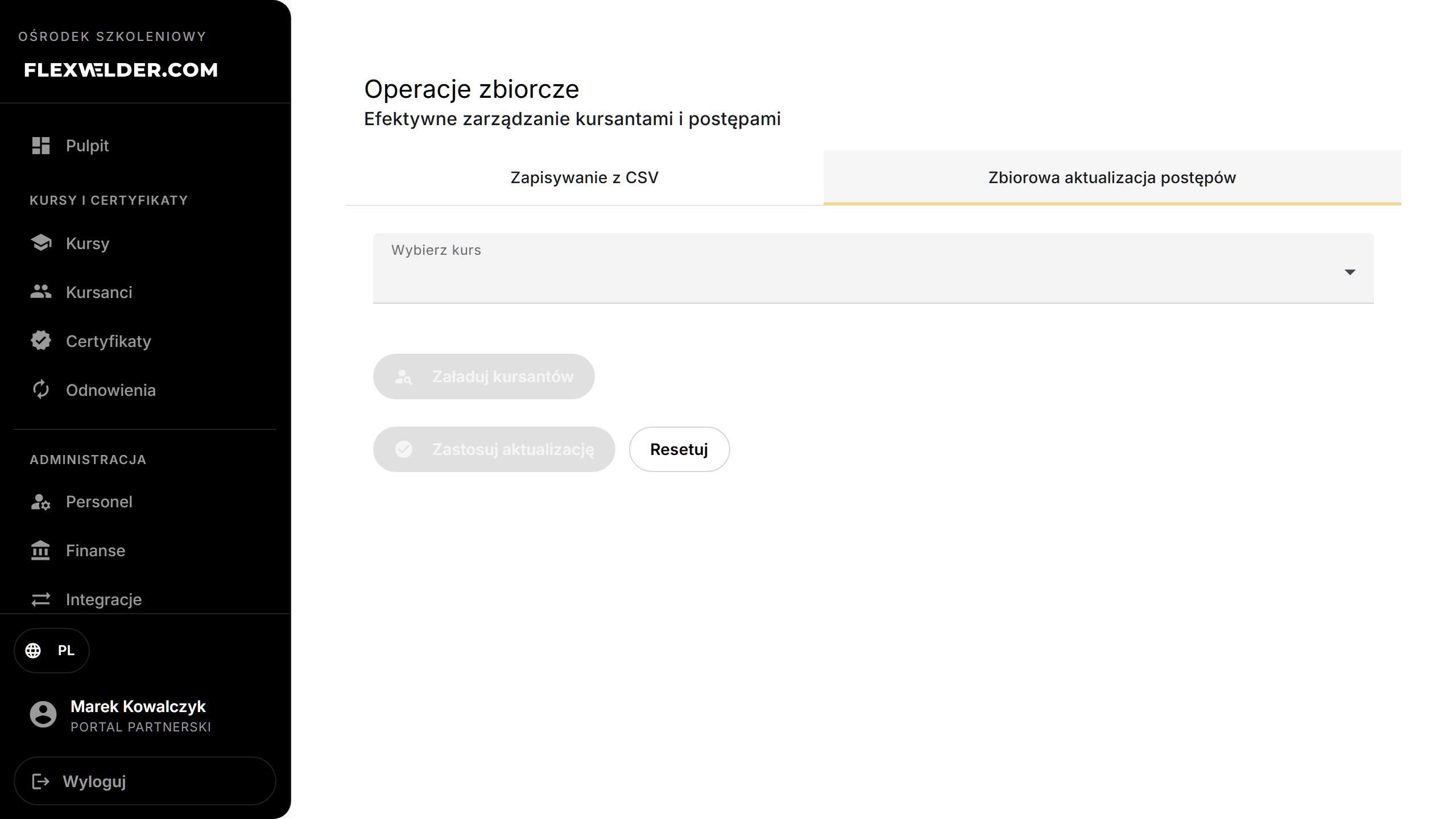
- See the result: Update Complete with successful/failed counts.
Fields & validation
| Tool | Inputs |
|---|---|
| CSV enrollment | Course + CSV (email, firstName, lastName). Invalid rows are flagged before running. |
| Batch progress | Course + selected students + a progress field to set. |
What happens / outcome
- CSV enrollment: each valid row is enrolled; the summary reports successful/failed/total (failed enrollments are listed).
- Batch progress: the chosen milestone is set for all selected students; the summary reports the counts.
Edge cases & errors
- Invalid CSV rows are counted and excluded; fix and re-upload.
- No students in the course for batch progress: nothing to update.
Related flows
- Enroll a student (single) · Student card (per-student progress) · Import certificates
FAQ
- CSV format? Three columns: email, firstName, lastName — one student per row.
- Bulk-enroll vs import certificates? This enrols students into a course; import loads certificates.