Offer PDF template (background & overlays)
The branded look of the offer PDF: an uploaded background (underlaid beneath the content), text overlays and images positioned in millimeters, content margins, default texts, and a preview on sample data.
When to use
Once, when rolling out offers — so they go out on your letterhead — and whenever your branding changes. Without any configuration offers use a built-in header with the center's logo.
Where
- Sidebar: Sales → Offers → the "Offer template" button
- URL:
/partner/offers/settings - Roles: Owner / Admin / Manager.
Prerequisites
Prepare the background as a PDF file (A4, max 10 MB, not encrypted), e.g. an export of your letterhead design. The system deliberately does not accept JRXML templates — convert a legacy template to PDF once. The center logo used in image slots comes from Account settings.
Step-by-step
- On the offers list click "Offer template".
- Background PDF: click "Upload background" and pick the file. "Page 1 goes under the offer's first
page, page 2 under the following ones; a single-page background is used everywhere." The "View background",
"Replace background" and "Delete" buttons manage the file.
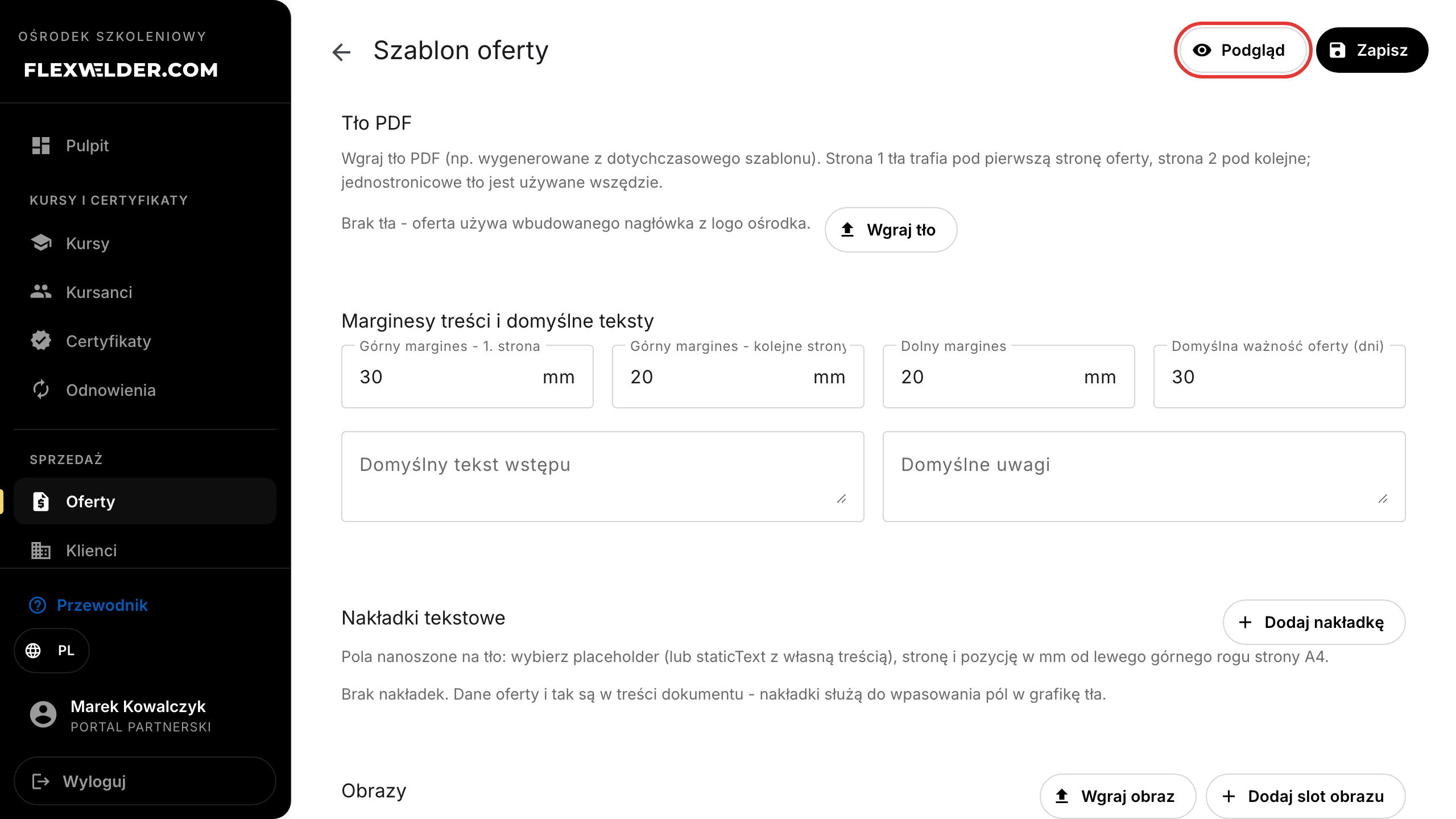
- Content margins and defaults: set Top margin - first page (room for the background's header art), Top margin - following pages, Bottom margin (in mm), plus Default offer validity (days), the Default introduction and Default notes — these pre-fill every new offer.
- Text overlays: click "Add overlay" and, in the table row, pick the Field (a placeholder fed from
offer data, or
staticTextplus your content in the Custom text column), the Page (First / Following / All), the X / Y coordinates and Width in mm (from the top-left corner of the A4 page), plus Size, Alignment and bold (B). "Offer data is in the document body anyway - overlays are for fitting fields into the background artwork."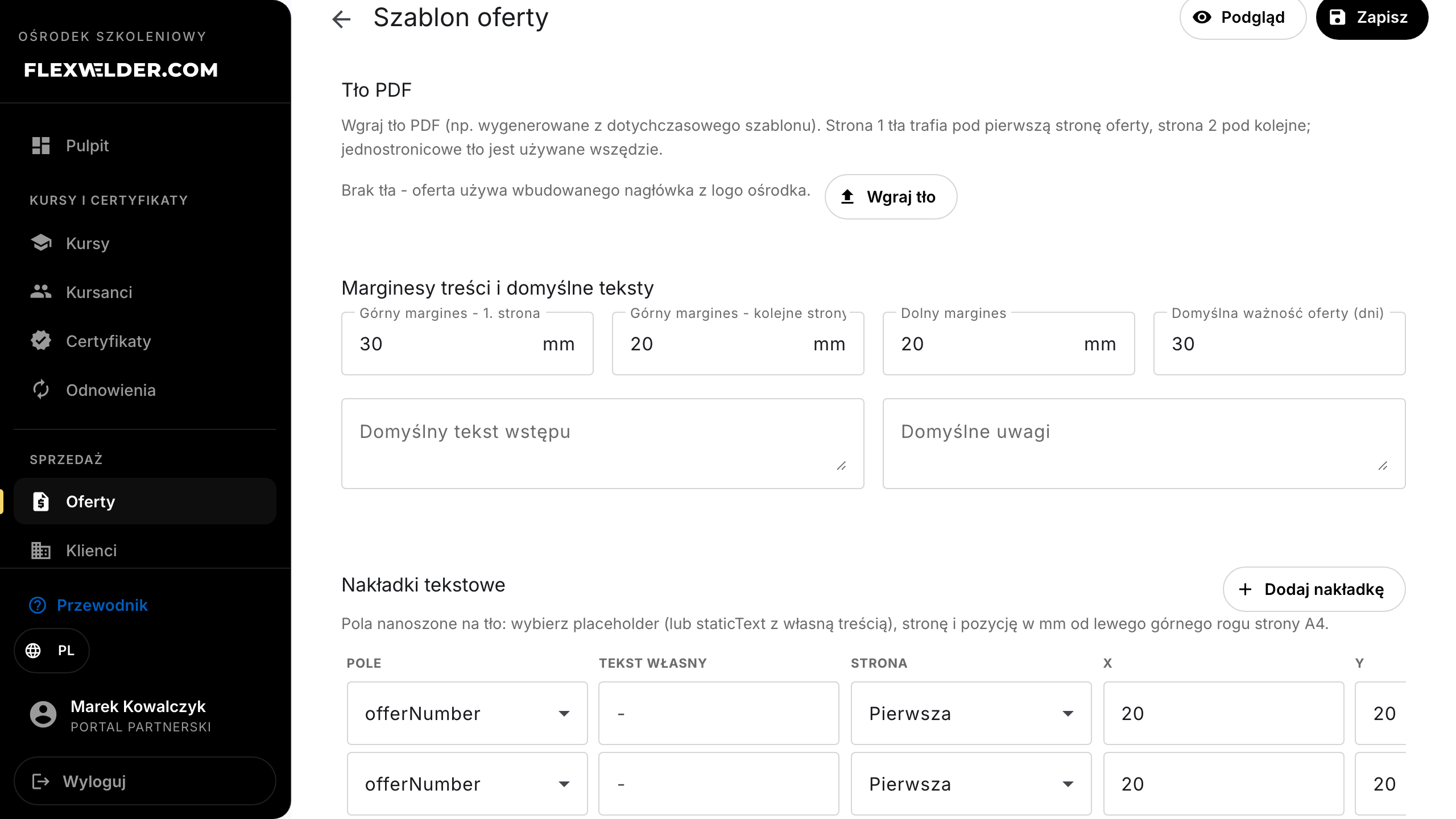
- Images: "Upload image" (PNG/JPEG, max 5 MB) adds a file to the library, and "Add image slot" — a row with a Source picker (Company logo or an uploaded file), page, position and size in mm.
- Click "Preview" — a new tab opens a PDF rendered with the current settings on synthetic sample data (no offer needed, no personal data). Iterate the coordinates until it fits.
- Click "Save" (toast "Template saved").
Fields & validation
| Field (label) | Required | Notes / validation |
|---|---|---|
| Background PDF | no | PDF, max 10 MB, not encrypted; otherwise "Invalid PDF file (max 10 MB, not encrypted)." 1–2 pages. |
| Margins (mm) | yes | 0–120 mm; the offer body (items table etc.) flows between the margins, above the background. |
| Default offer validity (days) | yes | 1–365; a new offer gets "Valid until" = creation date + this many days. |
| Field (overlay) | yes | Placeholders: offerNumber, issueDate, validUntil, client.name, client.nip, client.address, client.postalCity, client.city, client.contactPerson, preparedBy, companyName, staticText. |
| Custom text | only for staticText |
Any string (e.g. "OFERTA HANDLOWA"). |
| Image | no | PNG/JPEG max 5 MB; otherwise "Invalid image (PNG/JPEG, max 5 MB)." |
What happens / outcome
- Every offer PDF (preview, email attachment, download, public page) renders with these settings: background underneath, the offer body between the margins, overlays and images on top.
- Offers accepted earlier never change — their PDF was frozen at decision time.
Edge cases & errors
- Without a background the offer uses the built-in header: center logo + company data ("No background - the offer uses the built-in header with the company logo.").
- A too-small first-page top margin makes the body collide with the background's header art — increase the margin and re-check with "Preview".
- An encrypted / corrupted background PDF is rejected at upload; nothing is saved.
- A "Company logo" image slot with no logo uploaded in Account settings — the spot stays empty.
- The logo must be a raster file (PNG/JPEG/GIF from Account settings) — a logo uploaded as PDF or SVG won't render on the offer PDF (the spot stays empty, with no error message).
Related flows
- Offers list — the entry point · Create / edit an offer — where the default texts land · Account settings — the center's logo.
FAQ
- I have a template in the old system (JRXML). How do I use it? Export/convert it to a PDF (artwork only, no data fields) and upload it as the background; lay the offer data out with overlays.
- How do I find the millimeter coordinates? Measure them on a printout/design of the background (ruler or a graphics tool); point (0, 0) is the top-left corner of the A4 page. Click "Preview" after each change.
- Can I have different templates per client? No — one template per center.