Message certificate holders
Send an email and/or push notification to the students who hold certificates issued by your center, filtered by certificate status.
When to use
To reach holders in bulk — e.g. remind everyone with an expiring or expired certificate to renew.
Where
- Sidebar: Certificates → "Send Message" (a.k.a. "Message Certificate Holders")
- URL:
/partner/certificates/message - Roles: Owner / Admin / Manager.
Step-by-step
- Open "Message Certificate Holders".
- Select Recipients by filter: All Certificate Holders, Expired Certificates, Expiring Soon (within
90 days), or Valid Certificates. The count of matching recipients is shown; Preview Recipients lists them.
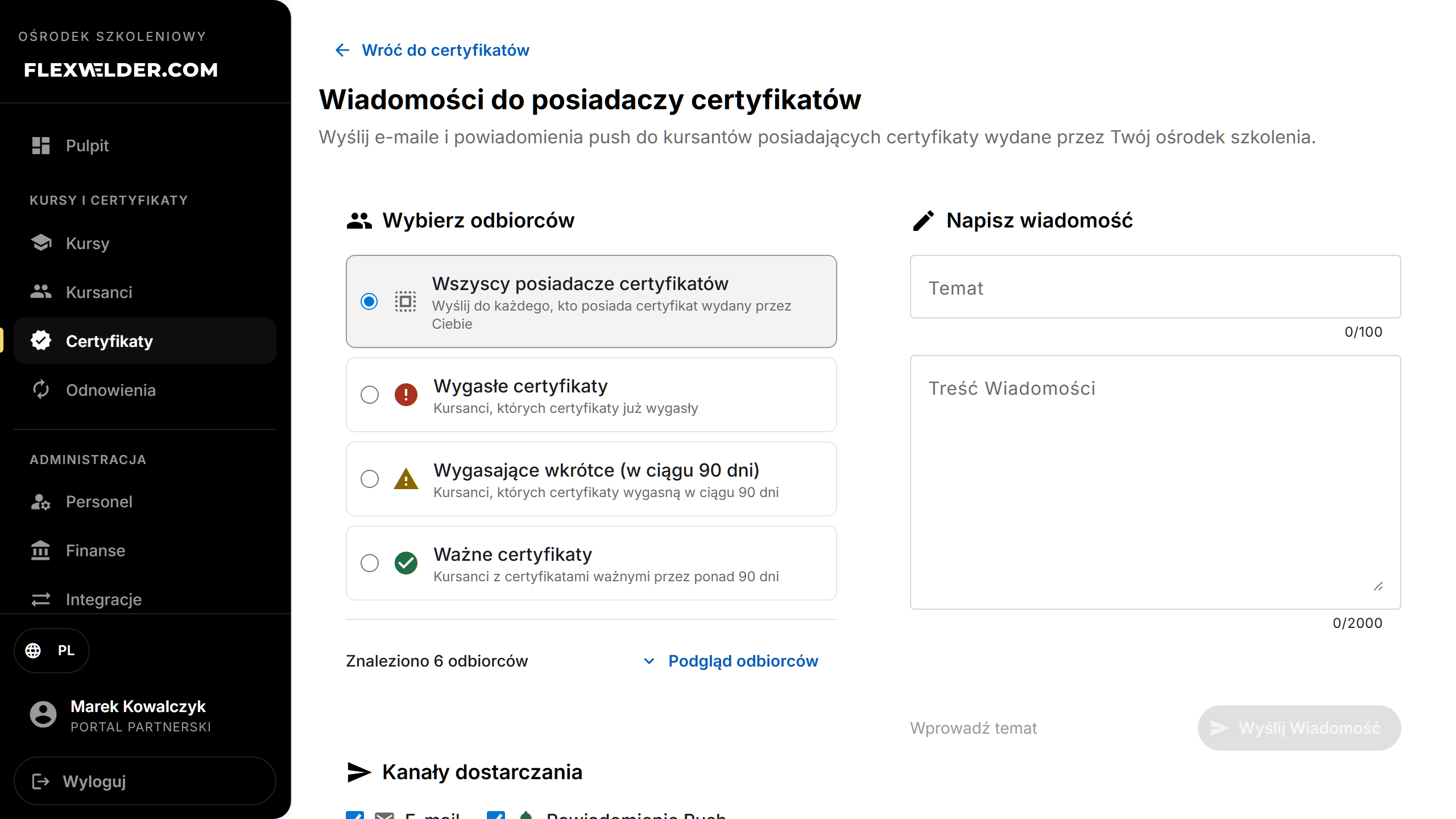
- Choose Delivery Channels: Email, Push Notification, or both.
- Compose Message: enter a Subject and Message body. You can use placeholders —
{userName},{certificateNumber},{expirationDate},{standardType}.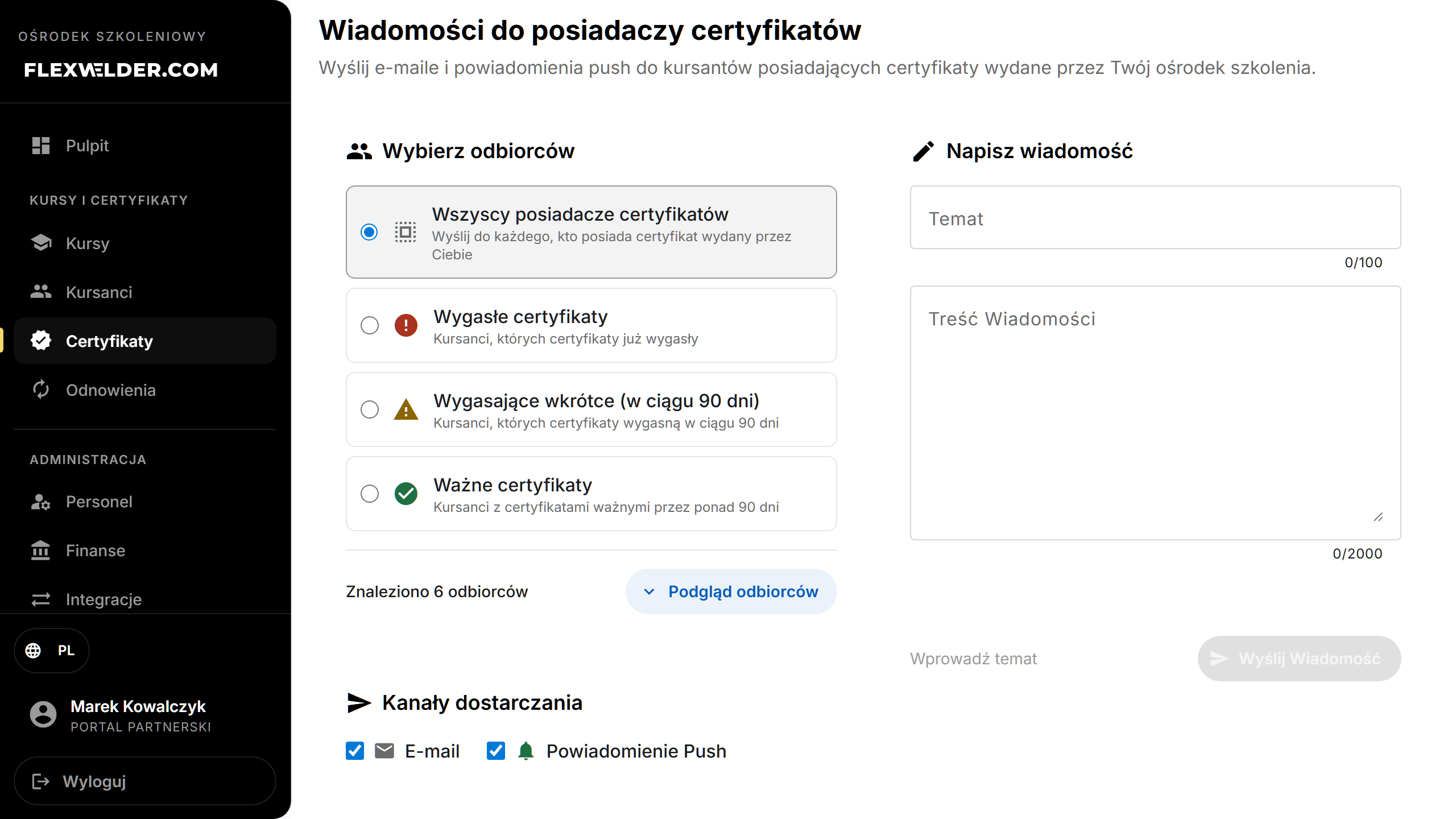
- Click "Send Message" and confirm.
Fields & validation
| Field | Required | Notes |
|---|---|---|
| Recipient filter | yes | Must match at least one recipient. |
| Delivery channel | yes | At least one of email / push. |
| Subject | yes | — |
| Message | yes | Supports the placeholders above. |
What happens / outcome
- A confirmation summarizes "Ready to send to N recipients via {channels}". On confirm, messages are sent and a toast reports "Message sent: {details} to N recipient(s)".
Edge cases & errors
- Inline hints block sending until you've chosen a filter with results, a channel, a subject and a message.
- Send failures show "Failed to send message".
Related flows
- Certificate register · Certificate renewal (also sends reminders, scoped to expiring buckets)
FAQ
- Email or push? Either or both — push reaches the student's Passport mobile app; email always works.
- How do I personalize the message? Use the placeholders (e.g.
{userName},{expirationDate}).