Transfer a student
Move a student from one course to a different course (optionally a specific edition). For moving between editions of the same course, use Move instead.
When to use
When a student should be in a different course altogether — e.g. they were enrolled in the wrong one, or are switching programs.
Where
- Opened from a course edition's Students tab → the transfer (compare-arrows) icon on a student row
- URL context:
/partner/courses/:courseId/instances/:instanceId - Roles: Owner / Admin / Manager.
Step-by-step
- On the edition's Students tab, click the transfer (⇄ compare-arrows) icon on the student's row.
- The dialog shows "From:" the current course. Pick the "Target course".
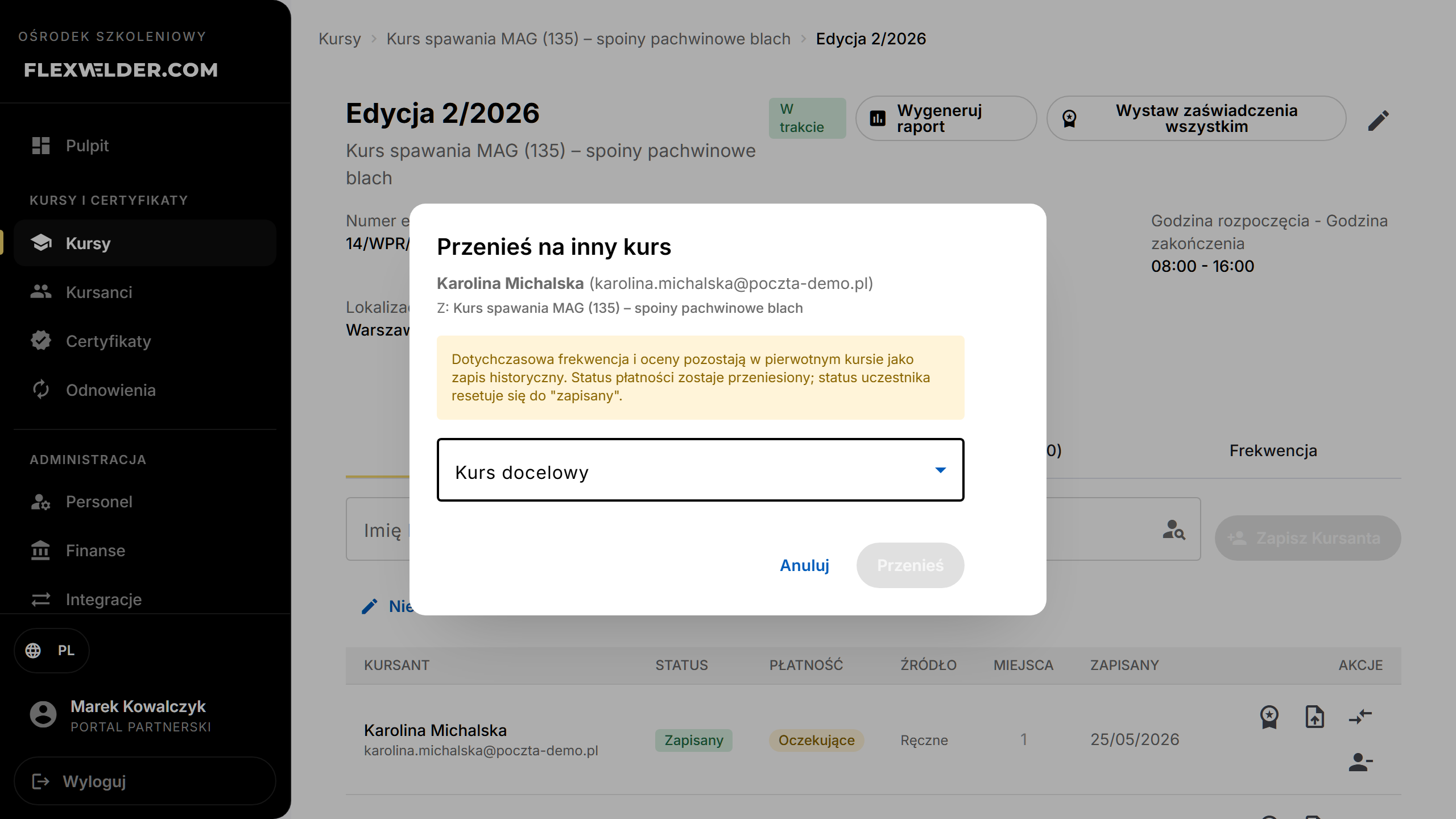
- Optionally pick a "Target instance" (leave on "Auto" if the target course has a single edition).
- Click "Transfer".
Fields & validation
| Field | Required | Notes |
|---|---|---|
| Target course | yes | The course to move the student into. |
| Target instance | no | Specific edition; "Auto" is valid only when the target has exactly one edition. |
What happens / outcome
The student is enrolled in the target course (toast "Transferred to …"). Per the dialog note: past attendance and grades stay with the original course as a historical record; payment status carries over; the enrollment status resets to "enrolled".
Edge cases & errors
- Move vs Transfer: the Move (swap) icon re-assigns within the same course's editions; Transfer (⇄) goes to a different course. Move only lists non-cancelled, non-completed editions.
- Transfer failures show a toast with the server message.
Related flows
FAQ
- Will their attendance follow them? No — past attendance/grades remain on the original course as history; the new enrollment starts fresh as "enrolled".
- Same course, different date — which do I use? Use Move, not Transfer.