Offers list
All of the center's offers with N/YYYY numbering, lifecycle statuses (Draft → Sent → Accepted / Rejected / Expired) and quick actions: PDF, duplicate, delete drafts.
When to use
The starting point of offer work: create a new offer, return to drafts, see what awaits the client's decision, and enter the PDF template settings.
Where
- Sidebar: Sales → Offers
- URL:
/partner/offers - Roles: Owner / Admin / Manager. Trainers don't see the Sales section.
Prerequisites
Creating an offer requires at least one client in the directory. A filled price list helps too, though items can also be typed manually.
Step-by-step
- Open Sales → Offers. The table shows Number (links to the offer), Client, Created,
Valid until, the Gross amount and Status.
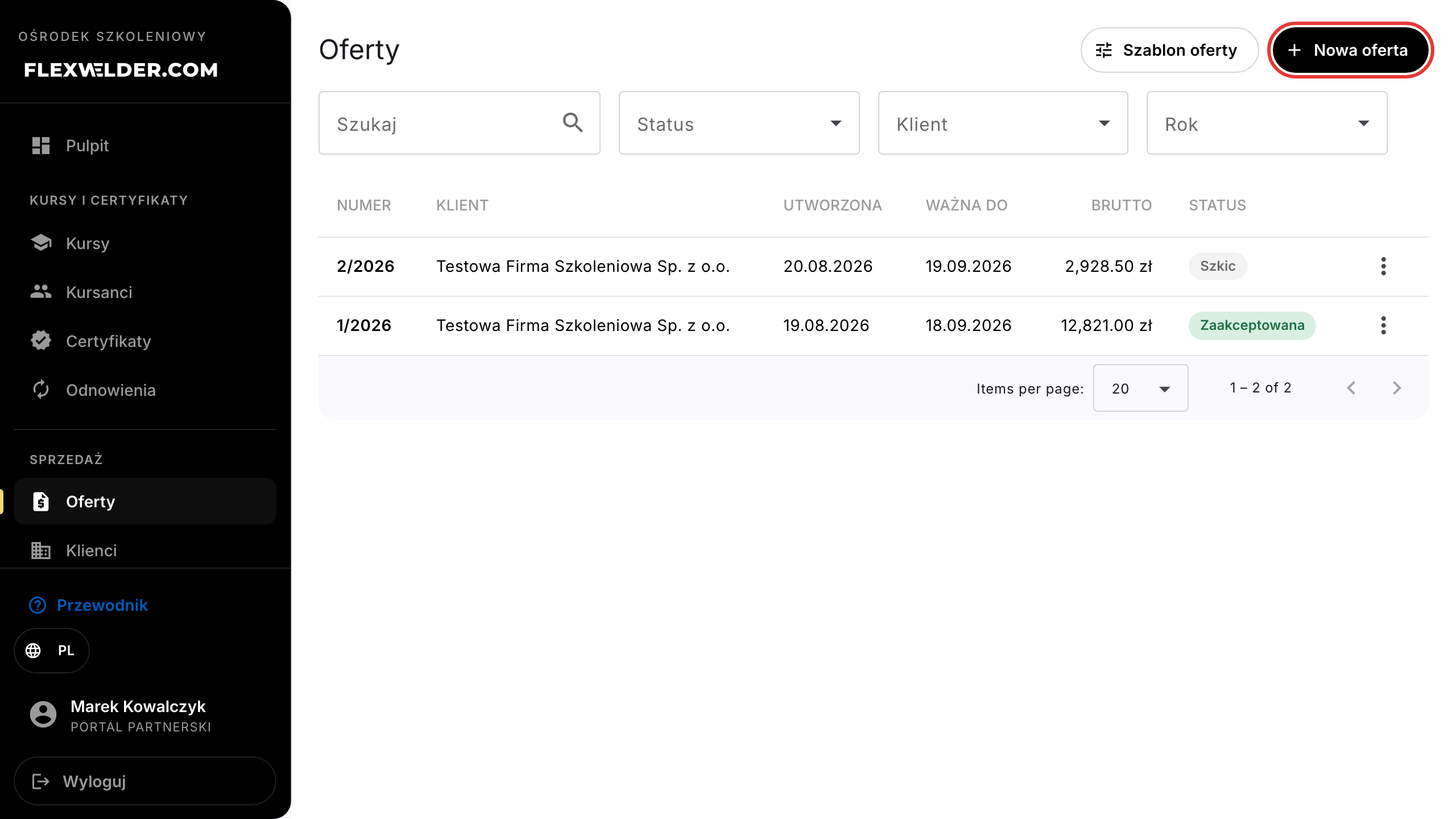
- Narrow the list with the search box and the Status, Client and Year filters.
- Click "New offer" to open the editor, or an offer number to open that offer.
- The ⋮ row menu offers: "Open", "Download PDF", "Duplicate", and for drafts "Delete draft".
- The "Offer template" button in the header leads to the PDF template settings.
Fields & validation
The list is read-only; data comes from the offer editor. The Status filter covers:
| Status | Meaning |
|---|---|
| Draft | Being edited; the number is already assigned, content can change. |
| Sent | Sent to the client (or marked as sent); editing locked, awaiting a decision. |
| Accepted | Client accepted (via link or a manual decision); the offer is frozen. |
| Rejected | Client rejected; the offer is frozen. |
| Expired | A sent offer whose Valid until date passed without a decision; a derived status (you can still record a manual decision or withdraw the offer to draft). |
What happens / outcome
- "Download PDF" renders the current offer document (file
Oferta_<number>.pdf). - "Duplicate" creates a new draft with the next number and the same content, then opens it in the editor (toast "Copy created as offer N/YYYY") — this is how you renegotiate after a rejection or expiry.
- "Delete draft", after confirming ("Offer N/YYYY will be permanently deleted."), removes the offer; numbers are not recycled — deleted drafts may leave gaps in the sequence (an offer is not an invoice).
Edge cases & errors
- Only drafts can be deleted — for other statuses the action is hidden, and a forced attempt ends with "The offer is locked for editing (not a draft)."
- N/YYYY numbering is assigned at creation, per calendar year (the counter resets on January 1st).
- Empty state: "No offers yet. Create the first offer for a client."
Related flows
- Create / edit an offer · Send an offer & acceptance link · Offer PDF template · Clients (directory).
FAQ
- Why does an offer show Expired although nobody clicked anything? The status is derived: a sent offer past its "Valid until" date displays as Expired. A client opening the link sees an expiry notice and can no longer decide.
- Can I fix an accepted offer? No — it is frozen. Use "Duplicate" and send a new version.