Create / edit a course
Define a course's properties — name, category, certificate setup, price, capacity. A course is the template; scheduled runs are its editions.
When to use
To add a new course offering, or to change an existing course's details, status, or certificate settings.
Where
- Sidebar: Courses → New Course (or a course's Edit)
- URL:
/partner/courses/new,/partner/courses/:courseId/edit - Roles: Owner / Admin / Manager. (Trainers cannot create or edit courses.)
Step-by-step
- From the courses list click "New Course" (heading reads "Create Course"), or open a course and choose Edit (heading "Edit Course").
- (New only) Optionally pick "Create from Template (optional)" to pre-fill the form, or leave "Start from
scratch".
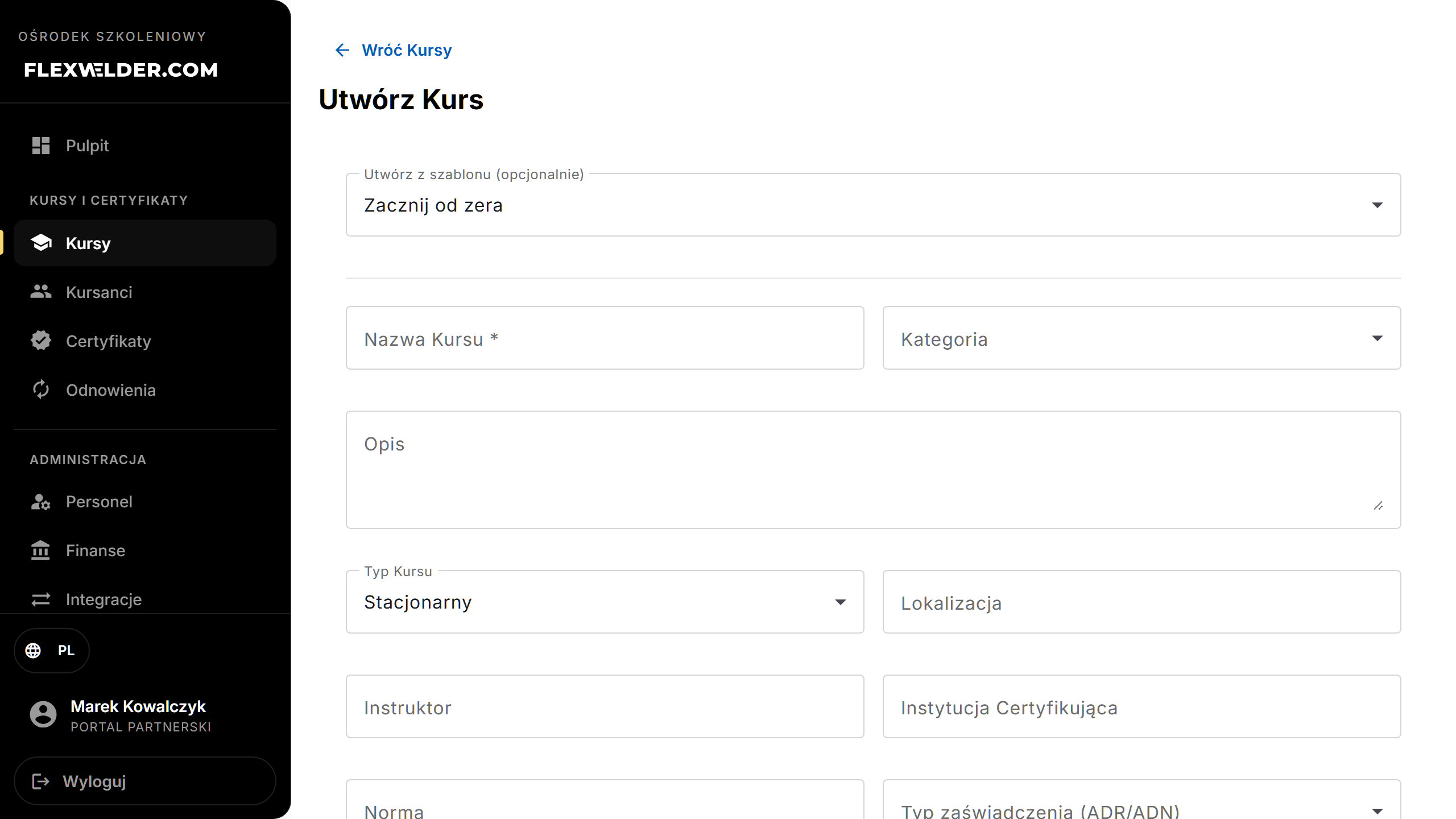
- Fill the fields (see table). Only Course Name is required.
- Tick "Certification Required" if the course concludes with a certificate.
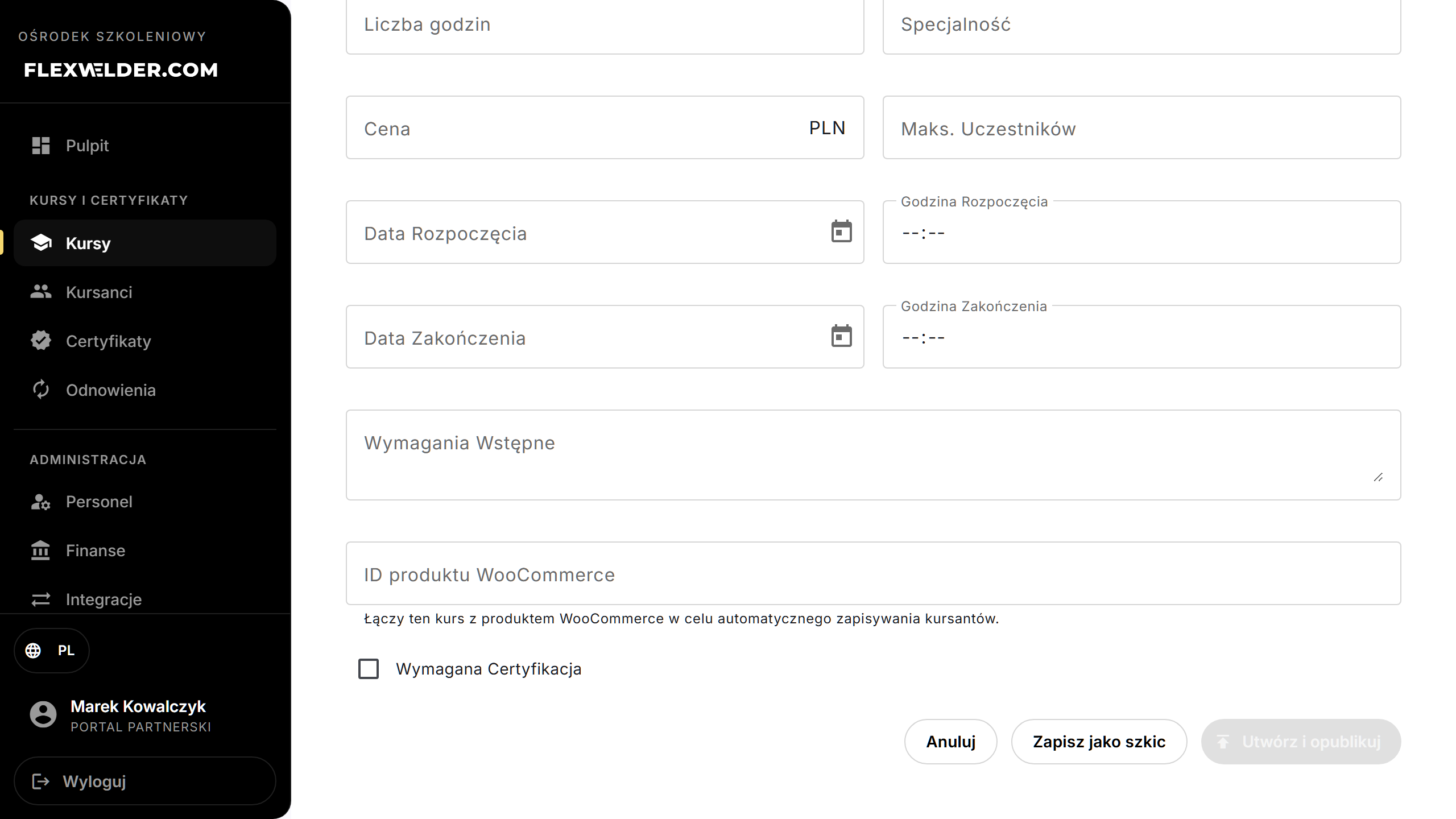
- Save:
- New: "Save as Draft" (keeps it hidden/inactive) or "Create & Publish" (sets it Active).
- Edit: "Save". Status buttons also appear — "Publish" (from Draft), "Unpublish" / "Archive" (from Active), or "Restore to Draft" (from Archived).
Fields & validation
| Field (label) | Required | Notes |
|---|---|---|
| Course Name | yes | Save is disabled until set. |
| Category | no | From the welding/inspection list (see Glossary). |
| Description | no | Free text. Printed on the certificate's 2nd page (above the programme/schedule). |
| Framework programme | no | Free text (one item per line). When filled, it is printed on the certificate's 2nd page instead of the auto-generated session schedule. Empty = the schedule is printed. |
| Course Type | no | On-site / Online / Hybrid. Defaults to On-site. |
| Location | no | Free text. |
| Instructor | no | Autocomplete from your staff. |
| Certifying Institute | no | Certifying body — autocomplete (e.g. TÜV, GIT, UDT-CERT, DEKRA); you can type your own. |
| Standard | no | Autocomplete (your past standards + common list); type a new value freely. Used by the completion report. |
| Certificate type (ADR/ADN) | no | None or an ADR/ADN type. |
| Certificate template | no | Automatic / MEN completion / ADR-ADN. |
| Course type (regulatory) | no | MEN certificate radio option. |
| Number of hours | no | Numeric. |
| Specialty | no | Free text. |
| Price | no | Numeric, in PLN. |
| Max Participants / Default instance capacity | no | Must be > 0. Label is "Max Participants" until the course has editions, then "Default instance capacity". |
| Start/End Date & Time | no | Shown only if the course has no editions. Once editions exist, dates are managed per edition (an info note replaces these fields). Start date must be ≤ end date. |
| Prerequisites | no | Free text. |
| WooCommerce Product ID | no | Links the course to a WooCommerce product for automatic enrollment. See Integrations. |
What happens / outcome
On save you go to the course details page. Toasts: "Course created" / "Course updated" / "Course created and published". Status changes show "Course activated" / "Course archived" / "Course set to draft".
Edge cases & errors
- Name missing: the save buttons stay disabled.
- Start after end / capacity ≤ 0: inline validation message; save is blocked.
- Archiving opens a confirmation that states how many editions and enrollment records will be archived. Archived courses are hidden from the active list but can be restored.
- Some buttons ("Save as Draft", "Create & Publish", "Publish", "Restore to Draft") currently appear in English in both languages.
Related flows
FAQ
- Why can't I set dates? The course already has editions — set dates on each edition.
- What's the difference between Save as Draft and Create & Publish? Draft is hidden from active listings; Publish makes the course Active immediately.