Course editions (instances)
An edition is a scheduled run of a course (dates, times, capacity, location). Students, attendance, agenda and instructors are managed per edition.
When to use
To schedule a course run, set its capacity and evidence number, and manage everyone enrolled in that specific cohort.
Where
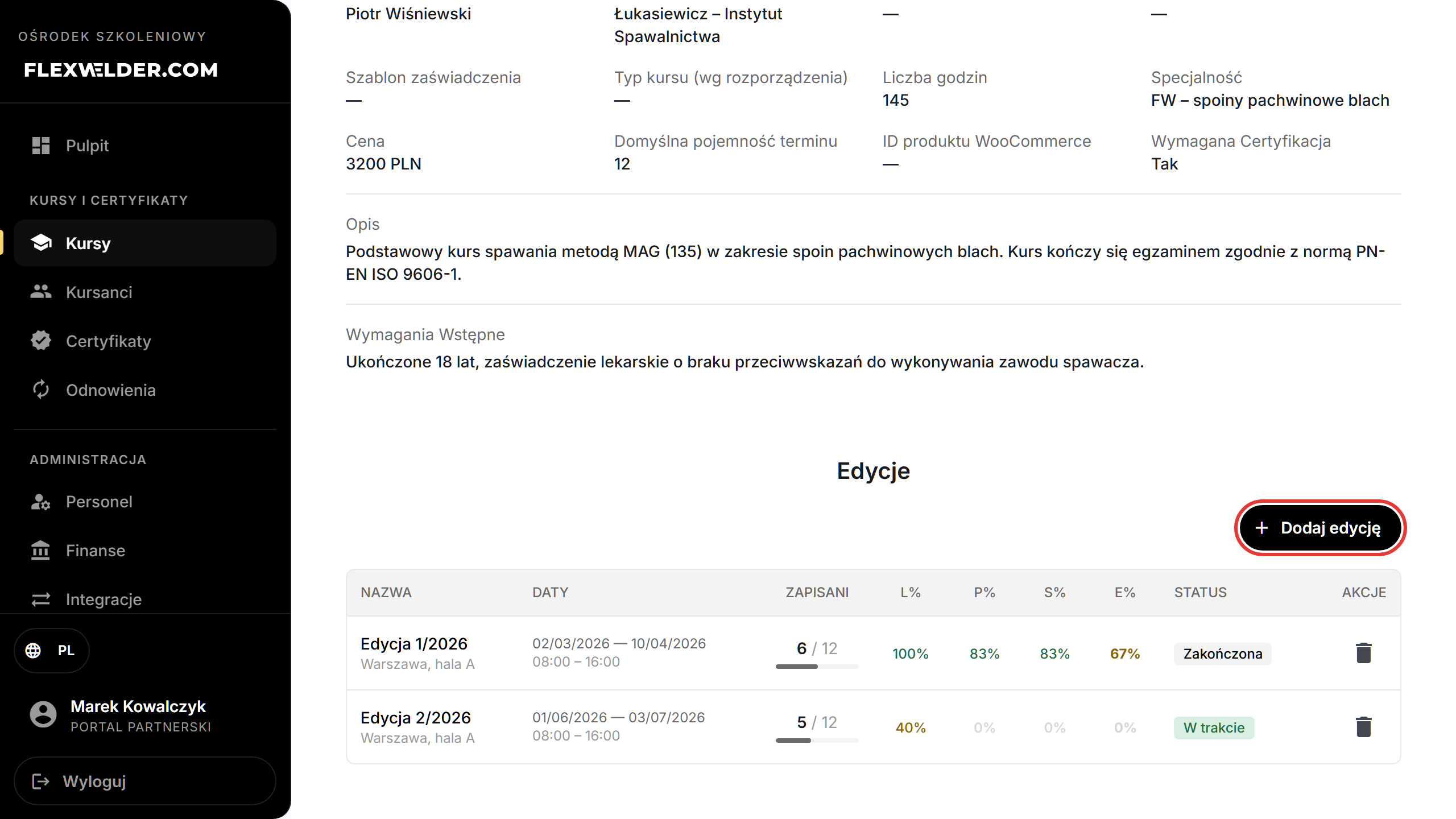
- List & add: on Course details → Editions section
- Edition detail URL:
/partner/courses/:courseId/instances/:instanceId - Roles: Owner/Admin/Manager manage fully; Trainers can open assigned editions (Students + Attendance tabs).
Step-by-step — add an edition
- On the course, in Editions, click "Add Instance" (or "Add first edition" when there are none).
Shortcut: from the courses list, the row menu ⋮ → "New session" opens the add-edition
form directly, scrolled into view.
- Fill "Label" (required), "Start Date" / "End Date", "Start Time" / "End Time", "Max
Participants", "Location", and "Evidence number" (e.g.
122/FTT/K/2025). - Click "Save". The edition appears in the table (toast "Edition created").
Step-by-step — open & edit an edition
- Click an edition row to open its detail page. The header shows the label, course, status chip, evidence
number, dates/times, location and enrolled / capacity.
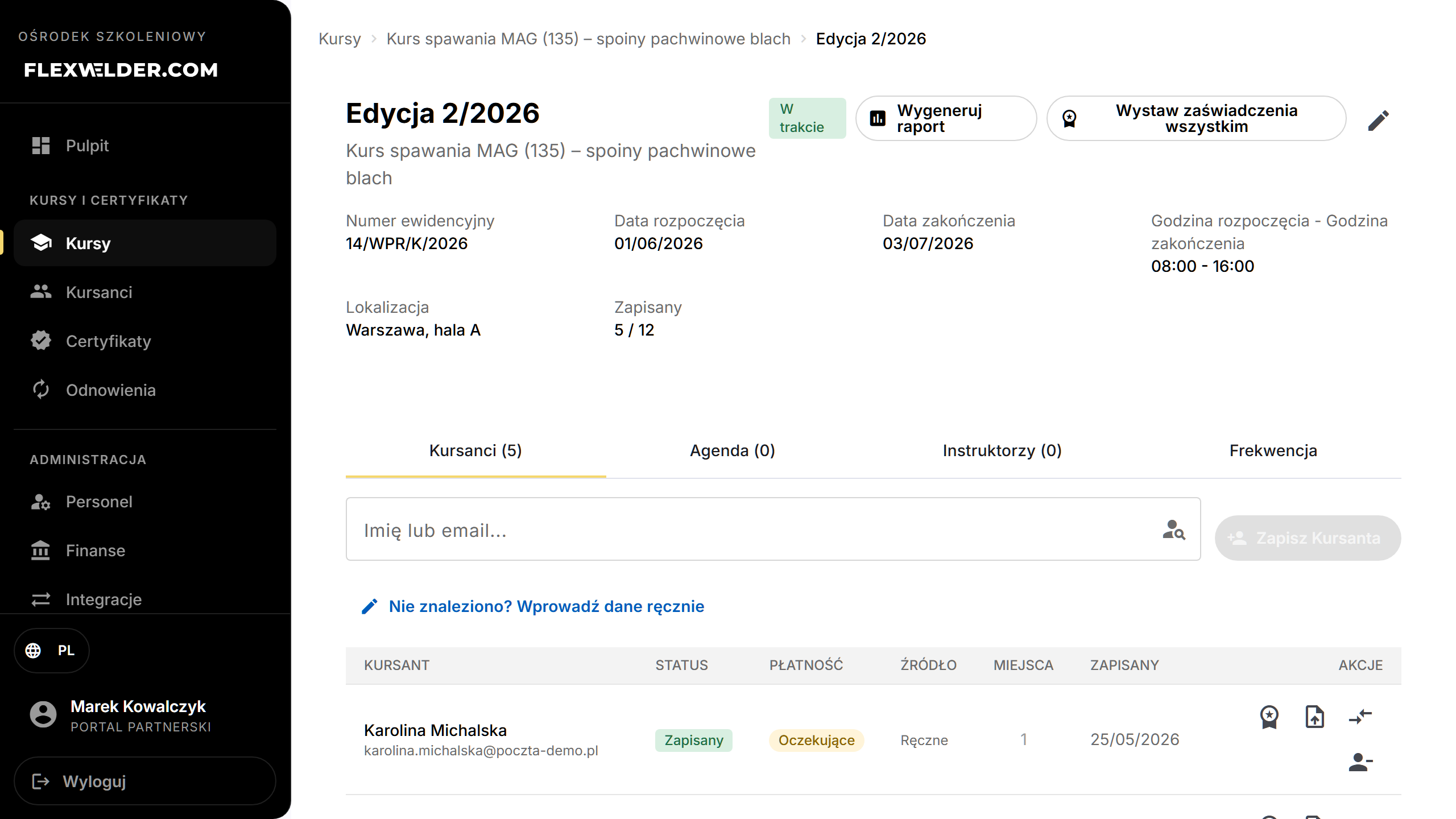
- Click the edit (pencil) to change label, dates, times, capacity, Status (Scheduled / In Progress / Completed / Cancelled), location and evidence number; "Save".
- Use the tabs: Students, Agenda, Instructors, Attendance (trainers: Students + Attendance only).
- Header actions (admins): "Generate report" (pre-filtered to this edition's dates) and "Issue certificates for all" (downloads a ZIP of completion certificates for students with a completion date).
Fields & validation
| Field | Required | Notes |
|---|---|---|
| Label | yes (add) | Identifies the edition. |
| Start / End date, Start / End time | no | The schedule; drives agenda days and attendance. |
| Max Participants | no | When reached, further enrollments go to the waitlist. |
| Location | no | Free text. |
| Evidence number | no | Per-edition reference printed on certificates/protocols. See Glossary. |
| Status | no | Scheduled → In Progress → Completed, or Cancelled. |
What happens / outcome
- The editions table shows live enrollment and lecture/practice/sample/exam pass rates per edition.
- Enrolling into a full edition shows a waitlist banner and queues the student ("Added to waitlist (position N)"); when someone unenrolls, the first on the list is enrolled automatically.
- Manage students (enroll, move, transfer, remove) on the Students tab — see Enroll a student and Transfer a student.
Edge cases & errors
- Deleting an edition asks for confirmation; enrolled students lose their edition assignment.
- Move (swap icon) re-assigns a student to another edition of the same course; Transfer (compare-arrows) moves them to a different course entirely.
- An edition with no start/end dates can't split attendance into days (attendance is recorded per day).
Related flows
- Course details · Enroll a student · Transfer a student · Attendance · Agenda · Instructors · Course-completion certificate
FAQ
- Course vs edition? The course is the reusable definition; an edition is one dated run with its own roster.
- What's the evidence number for? It's the official per-edition reference used on certificates and protocols.