Create / edit an offer
Single-page offer editor: a client from the directory, items from the price list or ad-hoc with a per-item % discount, a VAT summary computed per rate, and the introduction/notes texts.
When to use
Whenever you price training or exams for a client — from the first draft to a version ready for sending.
Where
- Sidebar: Sales → Offers → "New offer" (or clicking an existing offer's number)
- URL:
/partner/offers/new,/partner/offers/<offer id> - Roles: Owner / Admin / Manager.
Prerequisites
The client must exist in the directory — the editor picks a client, it doesn't create one. Items come from the price list or are typed manually.
Step-by-step
- On the offers list click "New offer".
- In the Client card pick the client — their NIP, address and email preview under the field.
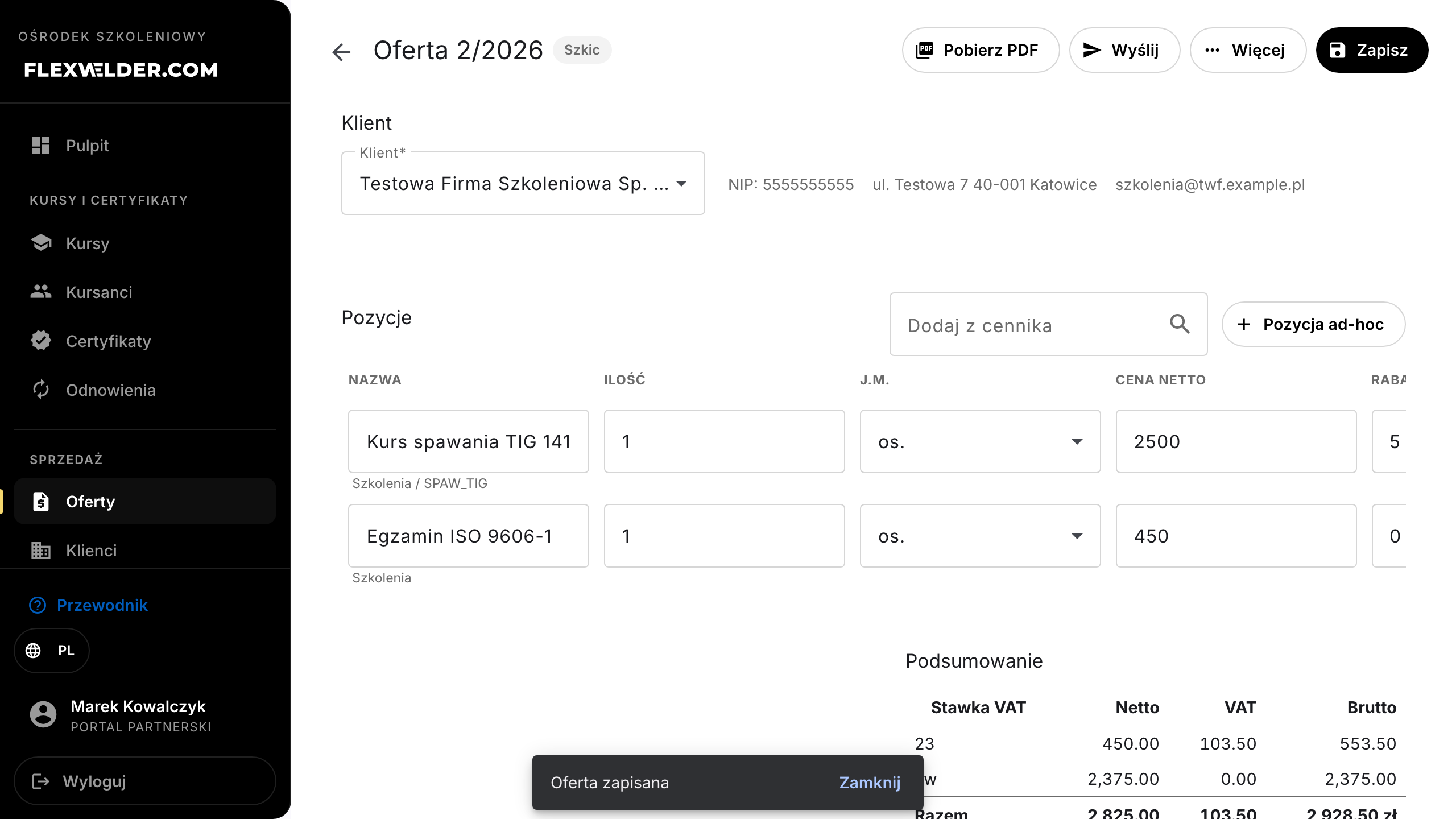
- In the Items card add rows:
- "Add from price list" — start typing a name and pick an item from the suggestions (the net price shows next to the name). The row copies the name, description, category, unit, price and VAT from the catalog.
- "Ad-hoc item" — an empty row to fill in manually.
- In each row set the Qty, Unit, Net price (you may override the catalog price), Discount % (0–100, per item) and VAT. The Net amount column recalculates live.
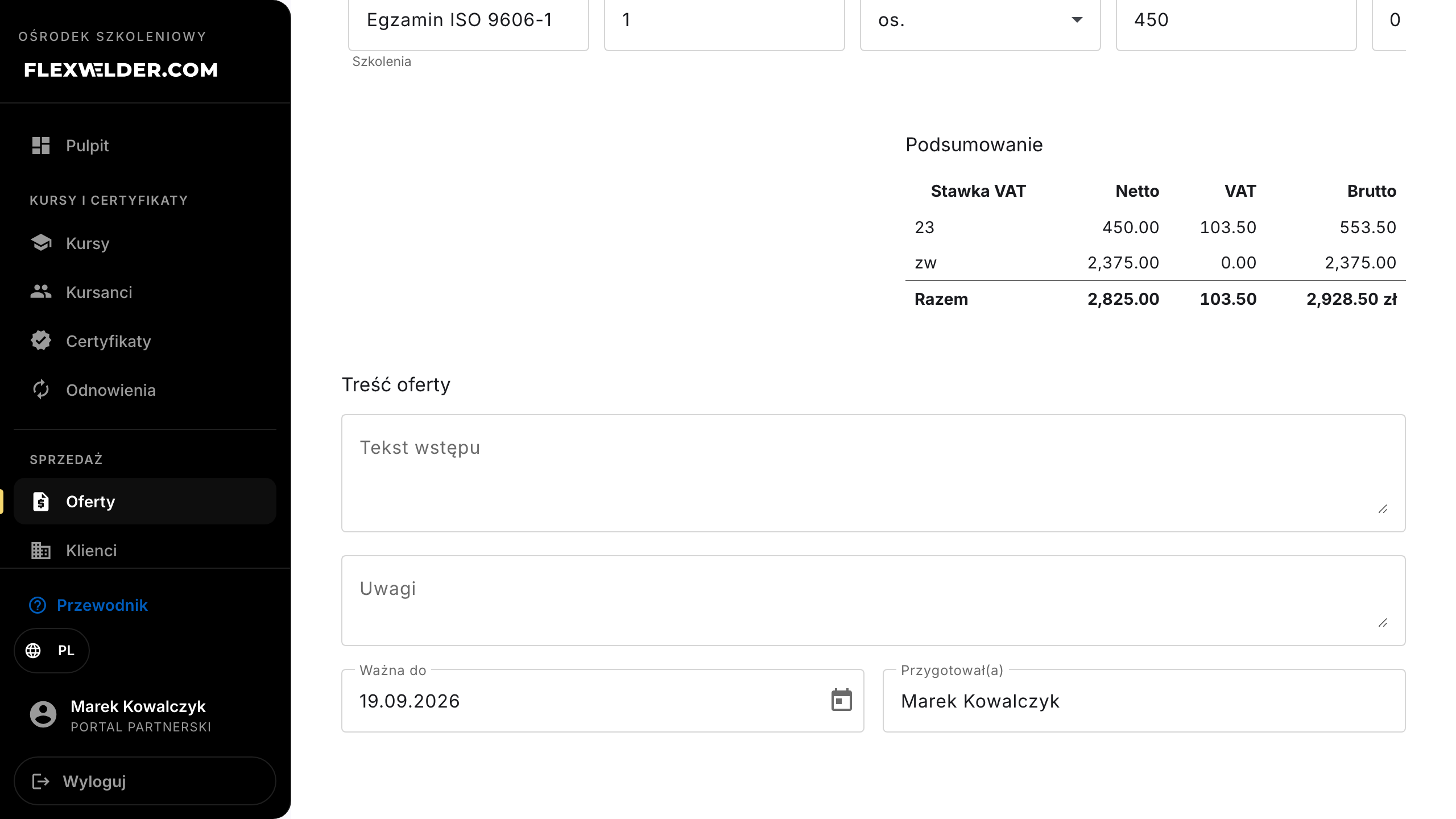
- Check the Summary card: one row per VAT rate used (Net / VAT / Gross) plus a Total row.
The
zwandnprates carry VAT 0.00 but stay as separate rows. - In the Offer content card fill in the Introduction, Notes, the Valid until date and
Prepared by. A new offer arrives pre-filled from the template settings
(default texts, validity = today + the default number of days) and with your name.
- Click "Save" (toast "Offer saved"). On first save the offer receives its N/YYYY number and appears on the list as a Draft.
Fields & validation
| Field (label) | Required | Notes / validation |
|---|---|---|
| Client | yes | Picked from the directory; "Save" stays disabled without one. |
| Name (of an item) | yes | Every row needs a name — otherwise "Every item needs a name." |
| Qty, Net price | yes | Numbers; row net = qty × price × (1 − discount/100), rounded once to the grosz. |
| Discount % | no | 0–100, per item. |
| VAT | no | 23 / 8 / 5 / 0 / zw / np; VAT is computed on the rate group's net sum, not per row (invoice-style — the summary always matches the table). |
| Valid until | no | Decision deadline for the client; past it the offer shows as Expired. |
| Introduction / Notes / Prepared by | no | Land on the offer PDF; "Prepared by" signs the document. |
What happens / outcome
- "Save" persists the header and all items; the server recalculates totals with the same algorithm you see live.
- The editor header exposes: "Download PDF", "Send", and the "More" menu (incl. "Duplicate", "Offer history", "Delete draft") — described in Send & acceptance and on the offers list.
Edge cases & errors
- Only a Draft is editable. A sent offer shows "The offer has been sent - withdraw it to draft to edit." with all fields locked; use "Withdraw to draft" from the "More" menu. Accepted/rejected offers cannot be edited at all — use "Duplicate".
- Unsaved changes: leaving the editor with unsaved changes triggers a warning.
- Discount and the zw rate: example — an item 4 × 2500.00 PLN
zwwith a 5% discount gives a net of 9500.00; the summary rowzwreads net 9500.00, VAT 0.00, gross 9500.00.
Related flows
FAQ
- Is the catalog price fixed? No — after adding an item you can change its price and discount on this offer only; the price list stays untouched.
- Where does the offer number come from? The system assigns it at first save: the next number in the current year (N/YYYY format), not manually editable.
- Can I reorder items? On the PDF, items group by their price list categories (in dictionary order); within a group they keep the order they were added in.