Issue a certificate
Upload a welding certificate PDF, let the system extract the data (OCR), review it, and issue the certificate to a student — creating their account if needed. The file is optional — a certificate can be issued without a scan and the scan attached later.
When to use
To register a single welding certificate for a student — from a scanned PDF or from the data alone (when you don't have the scan yet).
Where
- Sidebar: Certificates → "Issue Certificate" (also reachable per-student from a course's Students tab)
- URL:
/partner/certificates/issue - Roles: Owner / Admin / Manager.
Step-by-step
- Open "Upload & Issue Certificate".
- Student Information: search an existing student by name/email, or type a new student's Email *, First
Name *, Last Name (a new account gets an activation email). Opening this from a student's row pre-fills these.
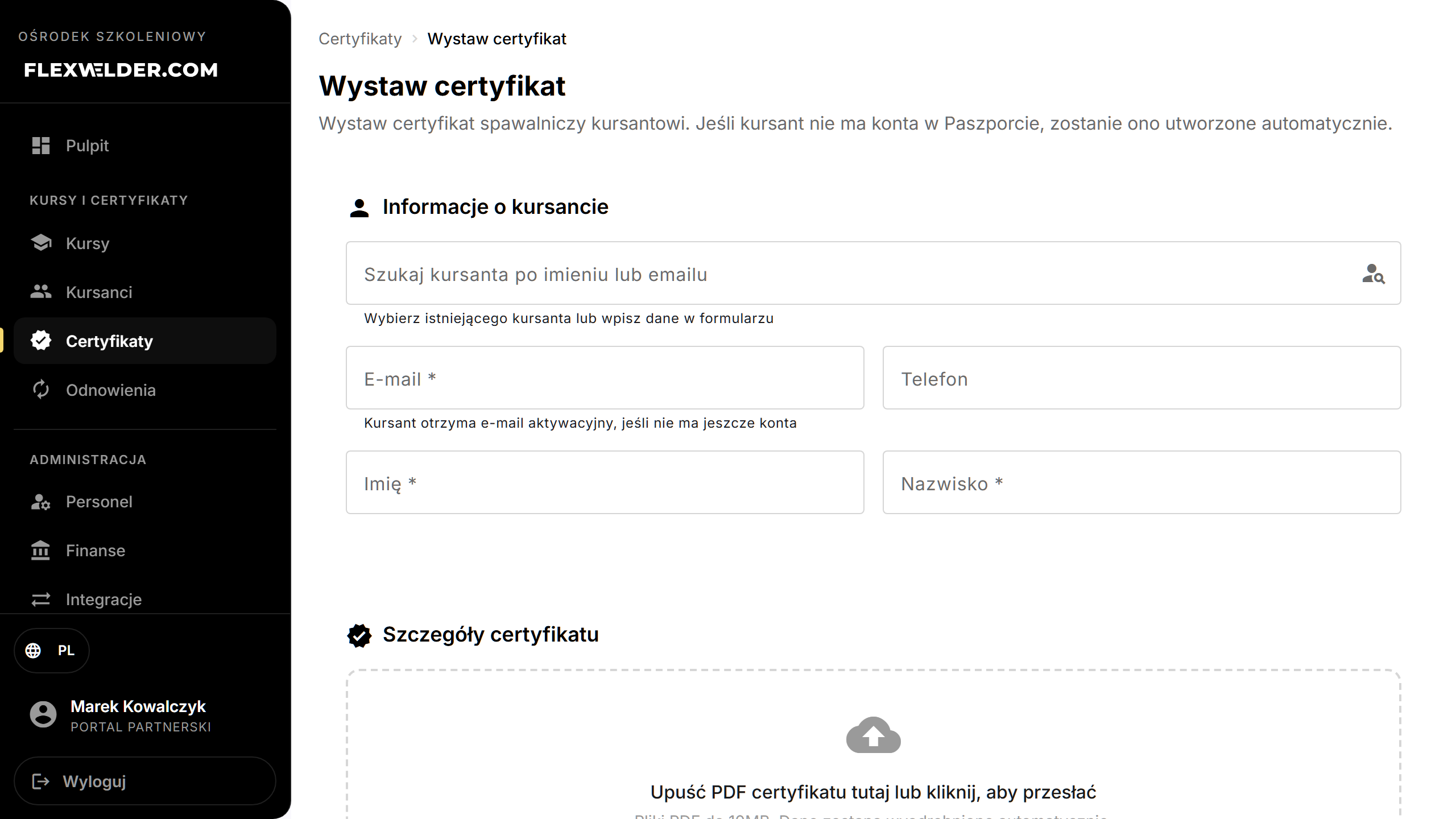
- Drop the certificate PDF ("Drop certificate PDF here or click to upload", up to 10 MB) — or skip this step: a hint below the field reads "The file is optional - a certificate can be issued without a scan and attached later." Once a file is uploaded, the system extracts the data automatically and shows an OCR badge:
- OCR: Full — all required fields extracted.
- OCR: Partial — some fields missing, please review.
- OCR: Review — key fields missing, fill in manually.
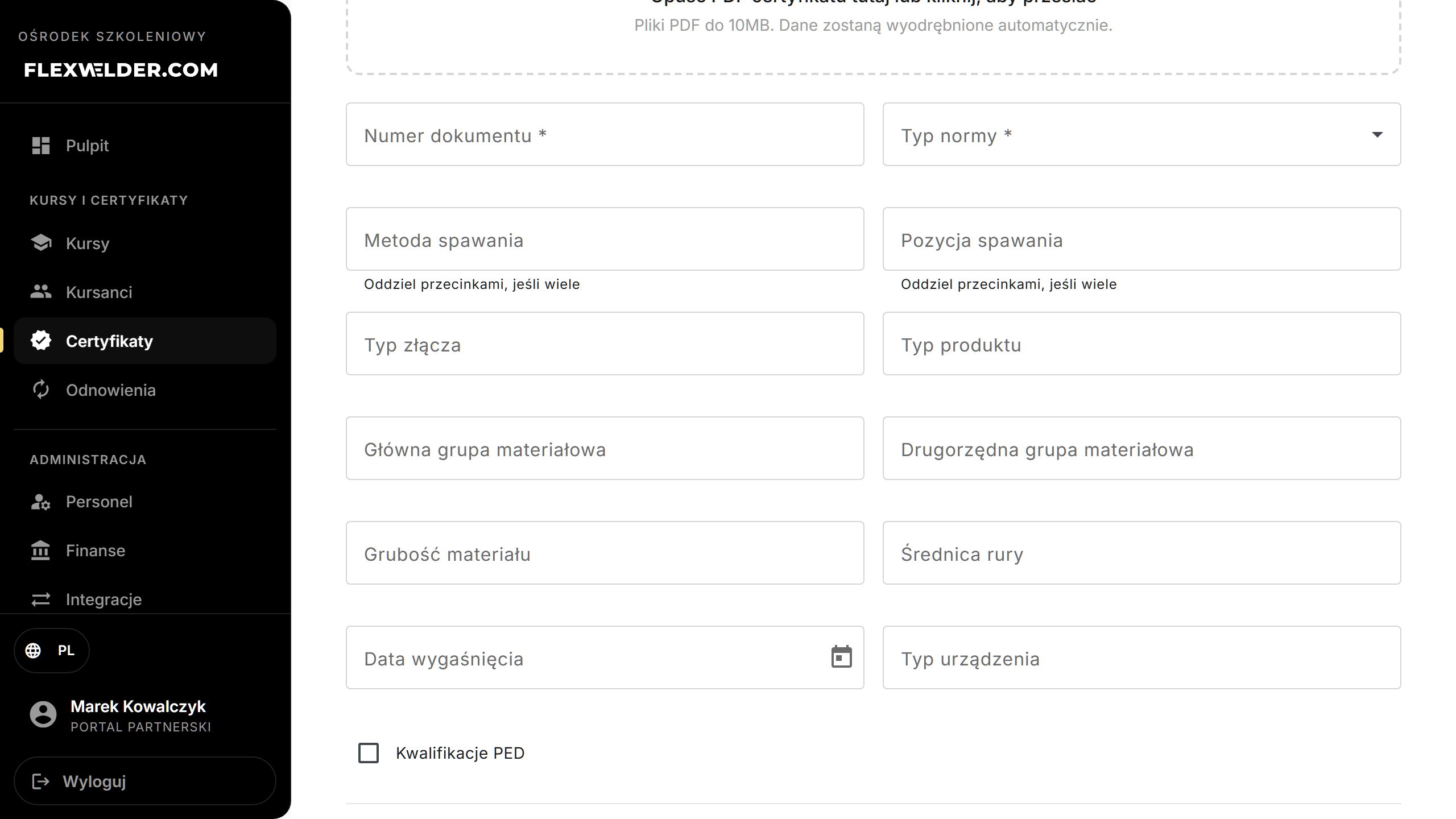
- Review the Certificate Details — at minimum Document Number * and Standard Type * — plus welding method/position, material groups, thickness, diameter, expiration date, device type, PED, and optional Advanced fields and Periodic Confirmations.
- Click "Issue Certificate".
Fields & validation
| Field | Required | Notes |
|---|---|---|
| Email, First Name, Last Name | yes (new student) | New users receive an activation email. |
| Certificate file (PDF) | no | ≤ 10 MB; drives OCR extraction. Without a file, enter the data manually — you can attach the file later in the certificate detail. |
| Document Number | yes | Marked with *. |
| Standard Type | yes | Marked with *. |
| Welding method/position, materials, thickness, diameter, expiration, device type, PED | no | Auto-filled where OCR found them; correct as needed. |
| Periodic Confirmations | no | Six-monthly confirmation entries. |
What happens / outcome
- The certificate is created and appears in the register — "Certificate issued successfully".
- New student: an account is created and an activation email is sent. Existing student: the certificate is added to their account.
- OCR feedback toasts: "Data extracted. Please verify and correct if needed." or "Could not extract data. Fill in manually."
Edge cases & errors
- Not a PDF / too large: "Please upload a PDF file" / "File size exceeds 10MB limit".
- Missing required fields: the form lists what's missing (Email, First/Last Name, Document Number, Standard Type). The file is not required.
- A certificate without a file shows an orange bar and a "no file" chip in the register — clicking the chip (or the "Upload file" button in the detail view) lets you attach the scan later; the "File" filter finds such entries.
- The confidence/quality of extraction is shown ("Confidence: N%"); always verify auto-filled values.
Related flows
FAQ
- Do I have to upload a file? No — the file is optional. Without it, enter the data manually; attach the scan later (the register marks such a certificate with a "no file" chip).
- The student has no account — is that a problem? No; one is created and an activation email is sent.
- Many certificates at once? Use Import certificates.