Student self-service portal settings
Configure what students can see and do in their self-service portal: feature toggles, branding, self-registration rules, and the access link.
Note: the Student Portal menu item is currently shown as disabled ("To be implemented"). The settings page itself exists at the URL below.
When to use
To set up or adjust the student-facing self-service portal — what it shows, how it looks, and who can self-register.
Where
- Sidebar: Administration → Student Portal (item currently disabled)
- URL:
/partner/portal-settings - Roles: Owner / Admin / Manager.
Step-by-step
- Open "Student Self-Service Portal" settings.
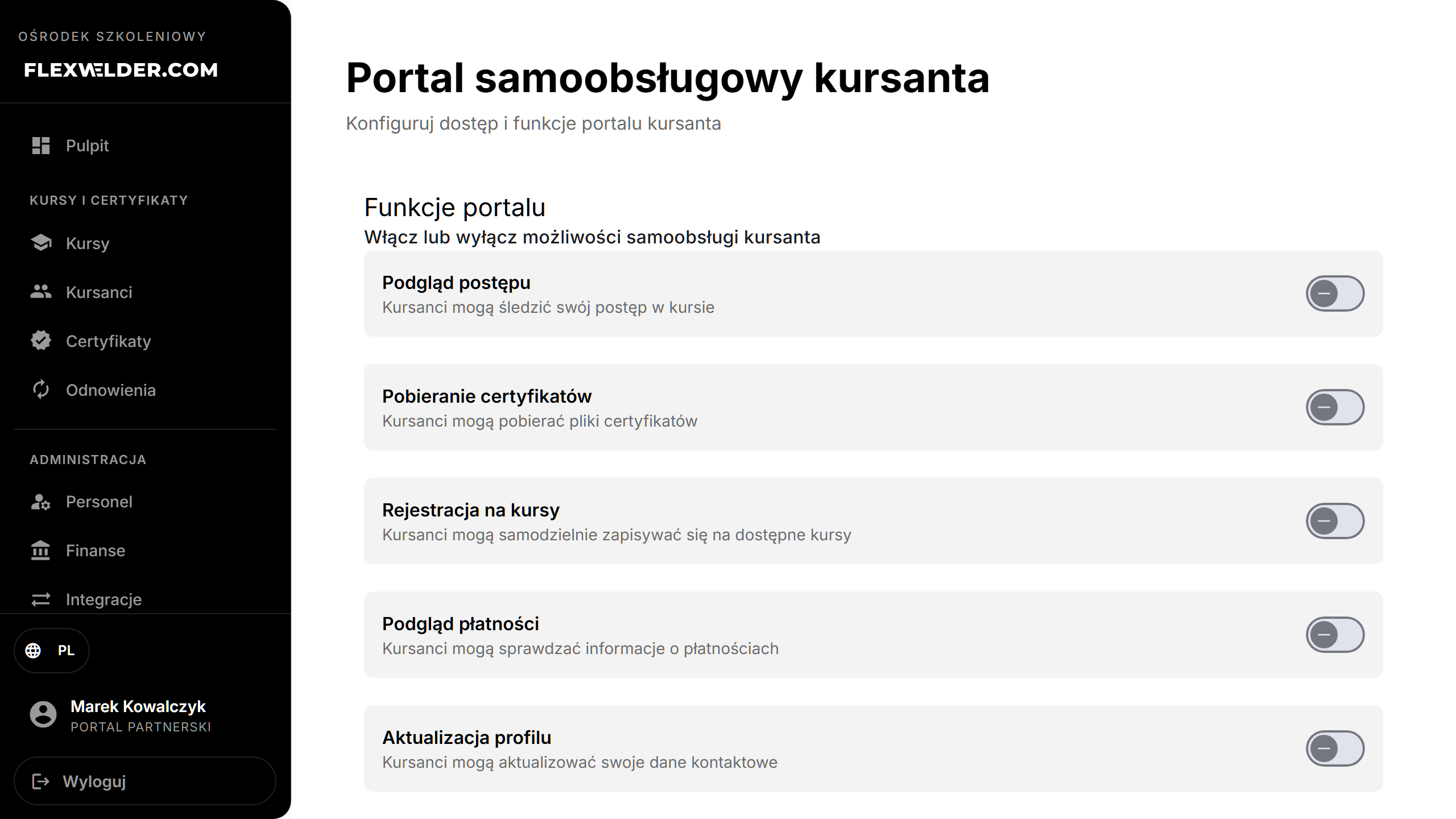
- Portal Features: toggle View Progress, Download Certificates, Register for Courses, View
Payment Status, Update Profile.
- Portal Branding: set Portal Title, Welcome Message, Company Logo URL, Primary Color.
- Course Registration Settings: choose Available Courses, toggle Require Payment Before Enrollment, set
Max Self-Registrations Per Student, and the Confirmation Email subject/body (placeholders
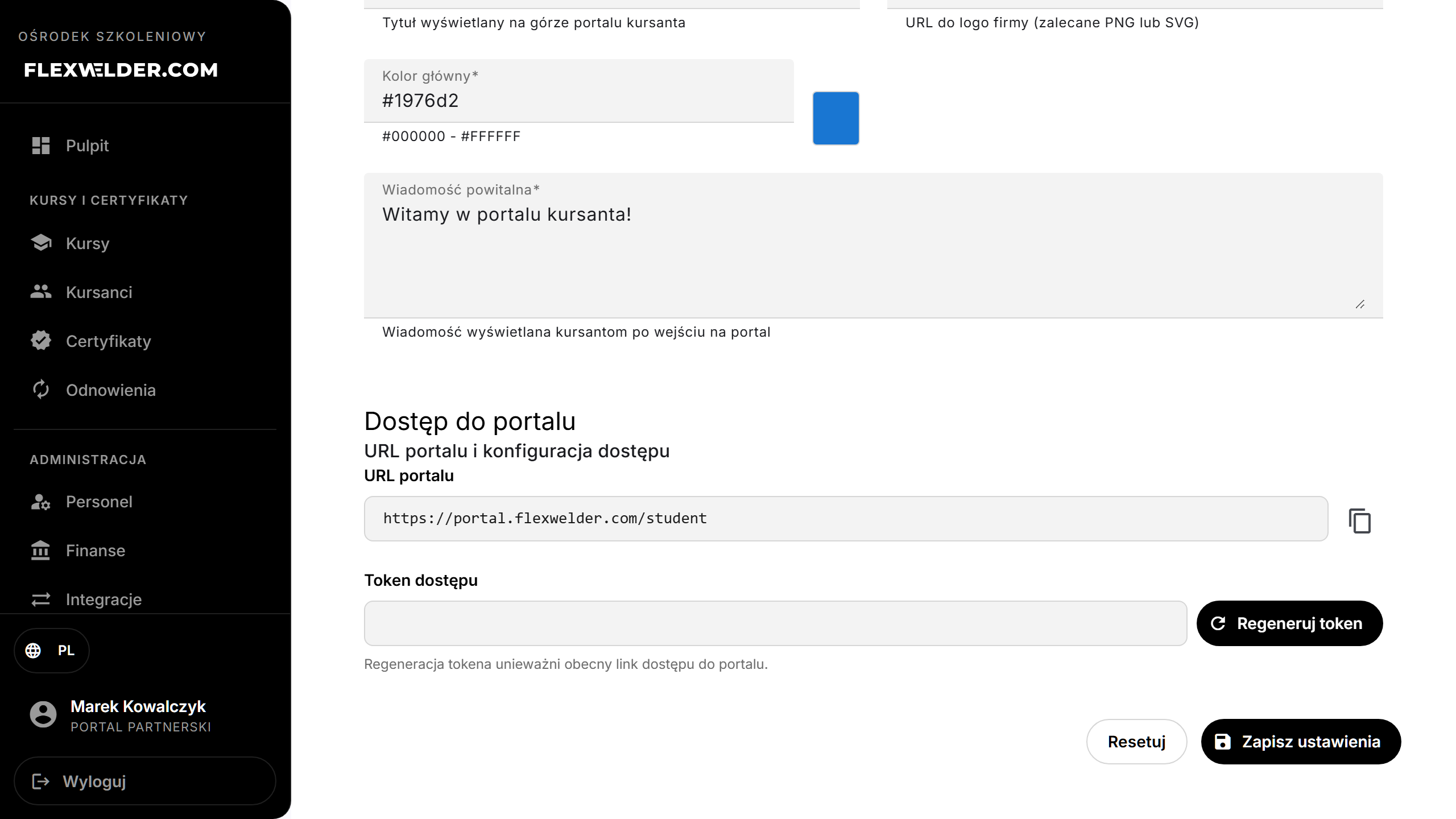
{studentName},{courseName},{startDate}). - Portal Access: copy the Portal URL; Regenerate Token if the access link must be invalidated.
- Click "Save Settings".
Fields & validation
| Group | Fields |
|---|---|
| Features | View progress, download certificates, register for courses, view payment, update profile. |
| Branding | Portal title, welcome message, logo URL, primary color. |
| Registration | Available courses, require payment, max self-registrations, confirmation email template. |
| Access | Portal URL (copyable), access token (regenerate). |
What happens / outcome
- Save Settings stores the configuration — "Portal settings saved".
- Regenerate Token issues a new token — "New access token generated" — and invalidates the previous portal link.
Edge cases & errors
- Regenerating the token breaks the old portal URL until you reshare the new one.
- Save/token failures show a toast ("Failed to save portal settings" / "Failed to generate access token").
Related flows
- Getting started · Courses list — courses you expose for self-registration.
FAQ
- Can students register themselves? Only if Register for Courses is enabled and the course is in Available Courses.
- The menu item is greyed out — why? The portal nav entry is currently disabled; the settings page is still reachable at its URL.